

How forms work
What a form is, what it is made of, who fills in which part and how it ends up on an appointment — the model behind the work order, the questionnaire, the checklist and the intake.
Forms record what should happen or be asked at an appointment. The technician fills in a work order on site and has the customer sign it. The physiotherapist reads a questionnaire the client filled in at home before the first treatment. The installer works through a checklist at handover. And a new customer gets an intake to fill in once, after their first booking.
You build all of these with the same tool, under Company → Forms. This guide explains how that tool fits together. Once you understand it, you can make a work order that fits exactly in a quarter of an hour — and you know what happens when you change it later.
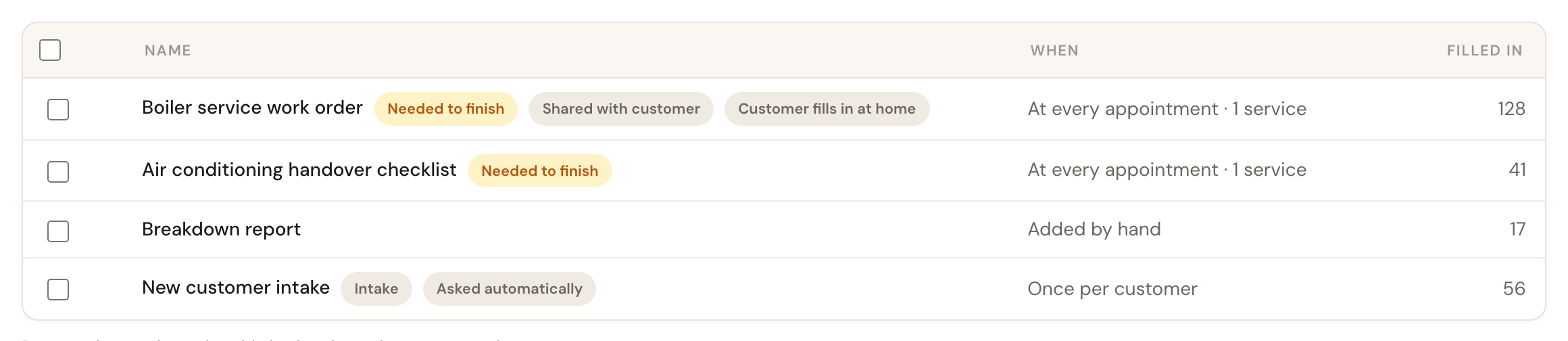
Four forms of an installation business. The badges after each name sum up how the form is set up.
The form and the filled-in form
There are two things to keep apart:
- The form is the template: the questions, in which order, who fills them in and which appointments it belongs to. You build it once, under Company → Forms.
- A filled-in form is one copy of it, at one appointment (or for one customer), with that visit's answers. You fill it in on the appointment, and afterwards it sits in the customer's file.
So the work order for the maintenance service is one form, but after a year there are hundreds of filled-in work orders: one per service. The overview shows that number in the Filled in column.
Sections: who fills in what
A form is made of sections, and each section holds questions. For each section you choose who fills it in:
- Filled in by staff — your team, at the appointment. This is the actual work: what was done, what was measured, the photos.
- Filled in by the customer — the customer themselves. Together with your colleague at the visit, or at home in the customer portal before you arrive.
One form can have both. The work order below starts with a section the customer fills in at home — what they noticed and where the boiler is — followed by two sections for the technician. That way the technician has read what the customer wrote before they arrive.
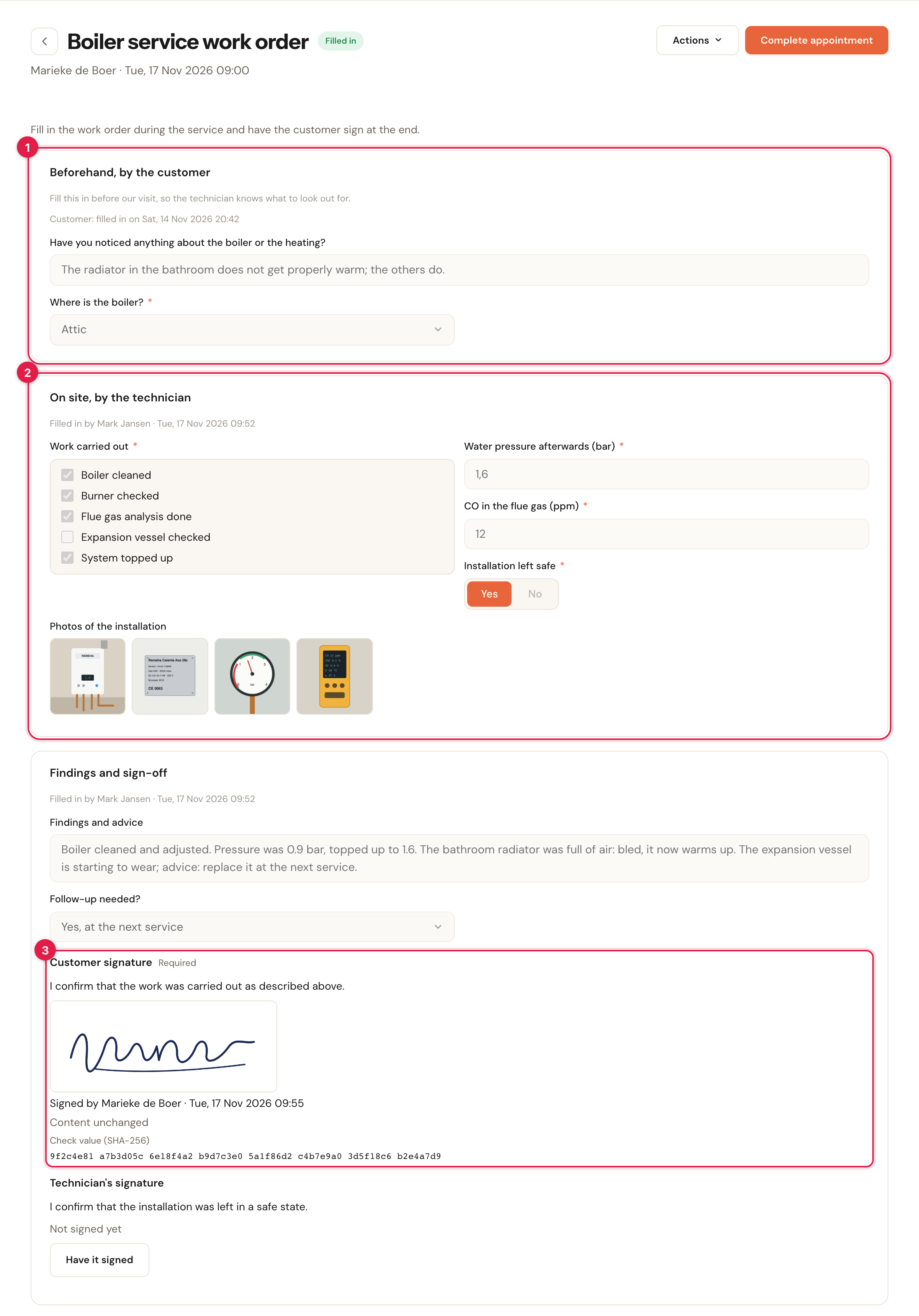
One work order, three parts: (1) what the customer filled in at home, (2) what the technician filled in on site, (3) the customer's signature.
Each part is finished on its own. The customer sends their part; the technician clicks Mark as filled in. Only when every part is done — and the required signatures are in place — is the form Filled in.
The questions
A question is a custom field of the kind Form questions, under Company → Custom fields. You can also create one from the form itself. One question can sit on several forms: Where is the boiler? is on the work order and on the intake. Whether a question is required is set per form, not on the question itself.
Every field type of the custom fields works: text, numbers, yes/no, a date, a select or multi-select, and Attachments for photos, files and video. A question on a form can hold up to 20 files, where a field on a customer or appointment holds 5 — a work order soon has more photos than that.
Signatures
A signature is not a question but a fixed part of a section your team fills in, with a title and a statement the signer reads. You choose who signs: the customer or the staff member. The customer signs on your colleague's device; signing in the customer portal is not possible (yet). A signature freezes the whole form: anyone who wants to change something afterwards must void it first, with a reason.
Which appointments: When to fill in
For each form you choose when it is filled in. That decides how it gets onto an appointment.
| Choice | What happens | Typical for |
|---|---|---|
| At every appointment | The form is set out by itself on every appointment with a customer for the chosen services, however the appointment was made: on the booking page, in the dashboard, in the portal, through an invitation or a connected calendar. | The work order, the handover checklist, the anamnesis for every treatment |
| Only when you add it manually | Never set out by itself. A colleague adds it on the appointment or on the customer, with + Form. | A breakdown report, a damage report, a form for exceptions |
| Once per customer (intake) | Belongs to the customer, not to an appointment. The customer fills it in once, at home. | An intake, a getting-to-know-you questionnaire |
A few rules worth knowing:
- A form you ask at every appointment also lands on upcoming appointments. Save a new form and the appointments already planned get it too. Before saving, Schedulinq tells you how many; customers are not notified.
- An appointment that is already over does not get it by itself. Not even when you change it to a service with a work order afterwards. Add it yourself.
- An appointment without a customer gets no form. A block in your calendar has nobody to keep it with.
- Change the service and the form changes along. A form nobody has put anything in disappears from an appointment it no longer belongs to; a form that already holds something stays. A form you added by hand always stays.
One appointment, one form
Every filled-in form belongs to exactly one appointment. If a customer books three services at once that each have a work order, that is three appointments and so three work orders. A form cannot be on the same appointment twice either.
A filled-in form follows its appointment:
- You move the appointment to another time: the form moves with it. Also when the customer picks a new time themselves through Reschedule, what was already filled in goes along to the new appointment.
- You cancel the appointment: the form becomes Void. What was in it stays readable.
- You put the appointment on another customer, because you made a mistake: the form goes along to that customer, with its answers and signatures.
Versions: changing a form while it is in use
You can always change a form, even when it has been filled in a hundred times. What happens then:
- What was filled in does not change. As soon as someone puts something in a form, the questions of that moment are recorded. Read that work order back in a year and you see the questions as they were asked then, even if you have since removed one or renamed it. It then says at the top: This form was changed later; these are the questions as they were asked at the time.
- What is still empty gets the new version. Next week's work order, which nobody has touched yet, simply shows the new questions.
- If someone is filling it in right now, the form carries their answers over to the questions that stayed, with the message The form was just changed; your answers have been carried over.
So you never need a second form because the first one is "already in use".
Where a form stands
On the appointment, in the customer's file and in the lists, one badge tells you how far a form has got:
| Badge | Meaning |
|---|---|
| Not filled in yet | Nothing in it yet. |
| In progress | Someone has started, but not every part is done. |
| Waiting for customer | Your team's part is done; the customer still has to send theirs. |
| Awaiting signature | Everything is filled in, but a required signature is still missing. |
| Filled in | Done. |
| Not needed | A colleague declared it is not needed this time, with a reason. |
| Void | The form is no longer needed: the appointment was cancelled, the form was archived, the appointment got another customer or service. What was in it stays readable. |
Four fixed choices
A few things work this way on purpose and cannot be set:
One appointment is one work order
Everything is per appointment. There is no work order for a whole day or for three appointments together.
That way every work order belongs to exactly one visit, one customer and one moment, and you can complete and invoice each appointment on its own. If you work at the same customer for a whole day, plan it as one appointment.
A signature is not a question
You add a signature as part of a section, not as a question type among the custom fields.
A signature locks the form: it records what was signed, with a check value, and nobody can quietly change an answer afterwards. An ordinary question cannot do that.
Answers never go into the customer's or object's data
What is filled in on a form stays on that form. A make or year the technician notes on the work order does not end up on the object or the customer by itself.
A work order is a report of one visit: what was found that day. The customer's and their objects' data are the state of now. To update those, do it on the object or the customer. With Show last time you do see on the form what was filled in last time — see Answers and history.
Only an intake is asked of the customer by itself
You always ask for the customer section of a work order or questionnaire yourself, per appointment, with Send request. Only an intake can be sent by Schedulinq by itself after a booking.
A questionnaire for every appointment that goes out by itself soon becomes a stream of e-mails nobody expects. An intake happens once per customer, and that is exactly the moment an automatic request is welcome. See Your customer fills in a form.
Who may do what
- Building forms under Company → Forms is for whoever may manage the organisation settings — usually only the admins.
- Filling in, adding and reading the answers is governed by the Forms section of a role, with two toggles: Fill in and view, and Mark as not needed. Staff may fill in by default, Manager both. See Roles and permissions.
- Whoever sees an appointment also sees that it has a form and how far it has got. Only those with Fill in and view see the answers themselves; the others read Your role may not view the answers. on the row. The form's page says which roles can read the answers.
- A form has no visibility of its own. Whoever may see an appointment may see the form on it; a form in the customer's file follows the customer.
What is not possible (yet)
- A customer cannot send photos or files yet. A question of the Attachments type may only sit in a section your team fills in.
- A customer does not sign in the portal. A signature is always made on your colleague's device.
- There are no questions that only appear after a certain answer. Every question is always there. For an explanation between questions, use a section's explanation or the form's introduction.
- Last time's answers are not copied over. You see them, but you fill in afresh.
- Limits: at most 30 sections and 150 rows per form, and 4 signatures.
Worked examples
Two examples show how to set this up in practice:
- A digital work order for boilers and heat pumps — an installation business with a work order that keeps the appointment open until it is filled in and signed.
- An intake and treatment form for your practice — a practice with an intake the client fills in at home and a report per treatment.
Further reading
- Build a form — the builder, field by field.
- Fill in a form — on the appointment, on a phone, with photos and a signature.
- Your customer fills in a form — at home, in the customer portal, and the intake.
- Answers and history — the customer's file, last time, the PDF by e-mail and what happened.