

An intake and treatment form for your practice
A worked example for a physiotherapy practice — the customer fills in their intake at home before the first appointment, the therapist records every visit and sees what was noted last time.
A new patient comes in with a shoulder that has been nagging for two months. The first quarter of an hour of their first appointment goes on questions they could have answered at home: since when, where exactly, which medication, who their GP is. You type along, they think, and the time for the actual examination shrinks.
At the follow-up, the opposite problem. You want to know what the pain was like last week, and that is in a record you first have to look up.
This page builds both with forms in Schedulinq: an intake your customer fills in at home before their first visit, and a treatment record the therapist fills in at every visit — with last time's answers underneath. The example is a physiotherapy practice, but the same structure works for a massage practice, a dietitian, a podiatrist or a vet.
Two forms, not one
The first instinct is to make one Anamnesis form, with a part for the customer and a part for the therapist. That does not fit what you want:
- Only an intake is asked for by itself. A form set to Once per customer (intake) goes to every new customer who books, automatically. Any other form with a customer part has to be sent by hand, appointment by appointment.
- An intake only has sections the customer fills in. There is no room in it for the therapist, and no signature either.
- An intake is filled in once, a record every time. You ask about the complaint once, at registration; the pain score you want at every visit.
So two forms, each with a job of its own:
| Intake | Treatment record | |
|---|---|---|
| Who fills it in | The customer, at home | The therapist, during the visit |
| When | Once, before the first appointment | At every appointment |
| How it reaches the customer | By itself, with their first booking | — |
| Does the customer see it | Their own answers, in the portal | No |
That gives every form one reader and one moment. The customer never gets a form half of which is not for them, and at a follow-up the therapist does not have to scroll past questions that belong to registration only.
How it runs
A new customer books a first consultation
Online, or you schedule it yourself. Schedulinq sees that they are new and that this service asks for an intake.
They get one e-mail with a link
To the customer portal, where the intake is waiting for them. If they have no portal access yet, the same e-mail takes care of that.
They fill in the intake at home
On their phone or computer, when it suits them, before the appointment. If it does not happen, they get a reminder.
You read it before the appointment
The customer record says the intake is completed; one click and you have their answers in front of you.
At every visit you fill in the treatment record
At a follow-up you show last time's answers underneath, so you see what has changed.
Form 1 — The intake
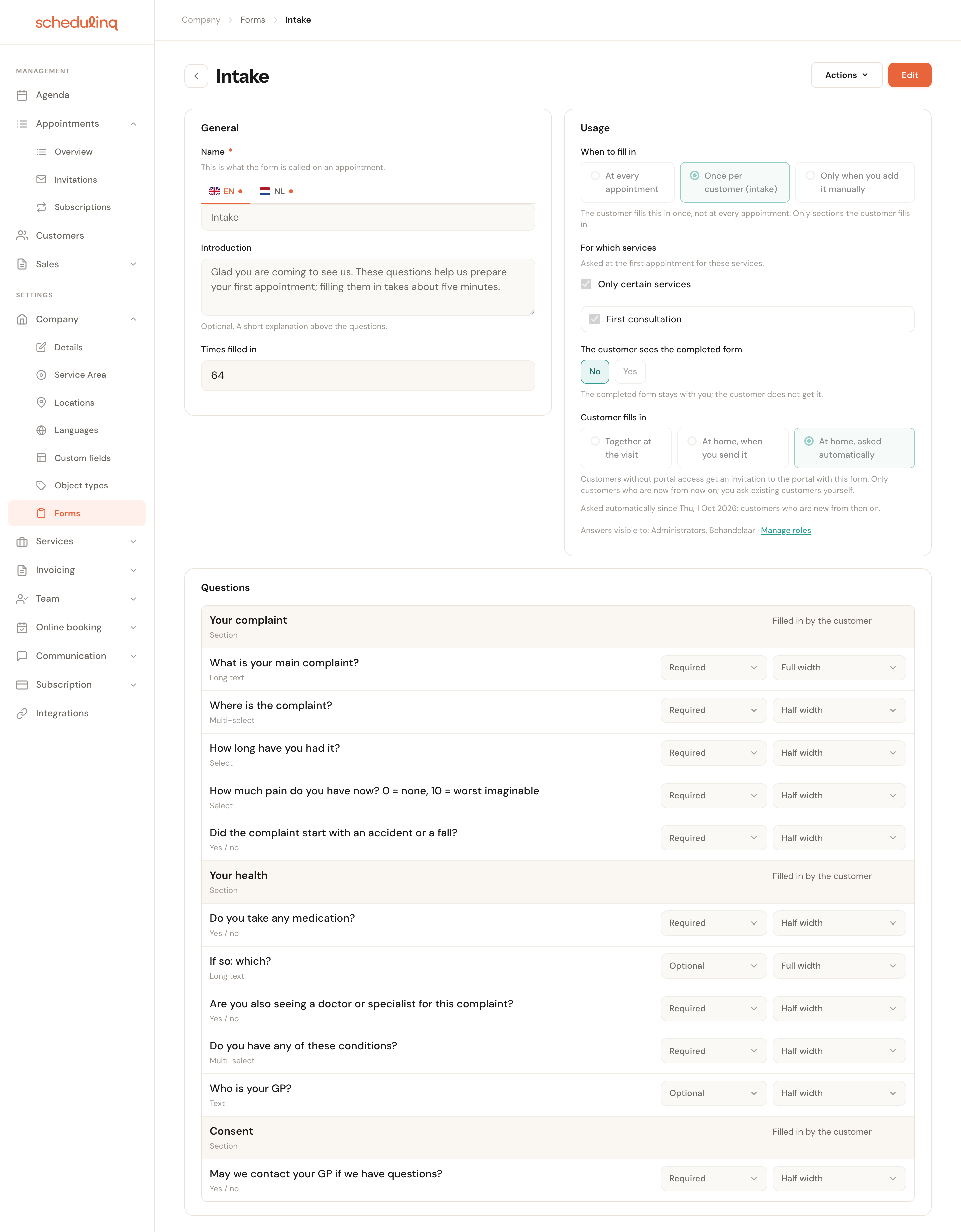
The intake as it stands under Company → Forms. The customer fills in all three sections; bottom right says who may read the answers.
| Setting | Choice |
|---|---|
| When to fill in | Once per customer (intake) |
| For which services | Only certain services: First consultation |
| Customer fills in | At home, asked automatically |
| The customer sees the completed form | No |
| Introduction | Glad you are coming to see us. These questions help us prepare your first appointment; filling them in takes about five minutes. |
Only for the first consultation
For an intake, For which services decides one thing only: which bookings ask for it automatically.
Someone booking just a sports massage does not need to tell you their medical history. And if the same customer later does book a first consultation, they still get the intake — they have never been asked.
An introduction that says how long it takes
The introduction stands above the questions, on the page your customer opens.
People put off a form when they do not know how long it is. Five minutes is a promise you can keep with the questions below; keep the form that short.
Section Your complaint
Explanation under the title: Describe it in your own words. We will go through it together at your first appointment.
| Question | Type | Required | Who fills it in | Why |
|---|---|---|---|---|
| What is your main complaint? | Long text | Yes | Customer | Their own words are where your conversation starts. Full width, with an example in grey. |
| Where is the complaint? | Multi-select | Yes | Customer | Neck and shoulder often go together; multi-select allows more than one answer. |
| How long have you had it? | Select | Yes | Customer | Nobody remembers the date; they do know whether it is weeks or months. The four choices are exactly the boundaries you use. |
| How much pain do you have now? 0 = none, 10 = worst imaginable | Select (0 to 10) | Yes | Customer | The same scale as in the treatment record, so you can put the first measurement next to the later ones. |
| Did the complaint start with an accident or a fall? | Yes / no | Yes | Customer | A yes is a reason to ask more first. |
A pain score as a select, not a number
A question of type Number or Whole number has no minimum and no maximum. Your customer can type 15 or -2, and Schedulinq accepts it.
A Select with the values 0 to 10 allows only the scale you mean, and on a phone choosing is quicker than typing. Put what 0 and 10 mean in the question itself: there is no room for an explanation per choice.
Section Your health
Explanation: These answers stay with the practice.
| Question | Type | Required | Who fills it in | Why |
|---|---|---|---|---|
| Do you take any medication? | Yes / no | Yes | Customer | A required yes/no forces an answer. |
| If so: which? | Long text | No | Customer | Optional, because someone who said no has nothing to say here. |
| Are you also seeing a doctor or specialist for this complaint? | Yes / no | Yes | Customer | Decides whether you get in touch with a colleague. |
| Do you have any of these conditions? | Multi-select | Yes | Customer | Heart or vascular disease, high blood pressure, diabetes, osteoporosis, cancer (now or in the past), pregnant — and None of these. |
| Who is your GP? | Text | No | Customer | Name and town; useful, not needed to start. |
There are no follow-up questions
A question that only appears when the previous answer was yes does not exist: your customer always sees every question.
That is why If so: which? sits directly under the yes/no question, and is optional. Start such a question with If so or If not, so anyone it does not concern knows they may skip it.
None of these, as a choice
A required multi-select question wants at least one tick.
Without None of these a healthy customer cannot send their intake, or ticks something to get on. With that choice, nothing is an answer you actually read back.
Section Consent
| Question | Type | Required | Who fills it in | Why |
|---|---|---|---|---|
| May we contact your GP if we have questions? | Yes / no | Yes | Customer | You want the answer in writing, also when it is no. |
Form 2 — The treatment record
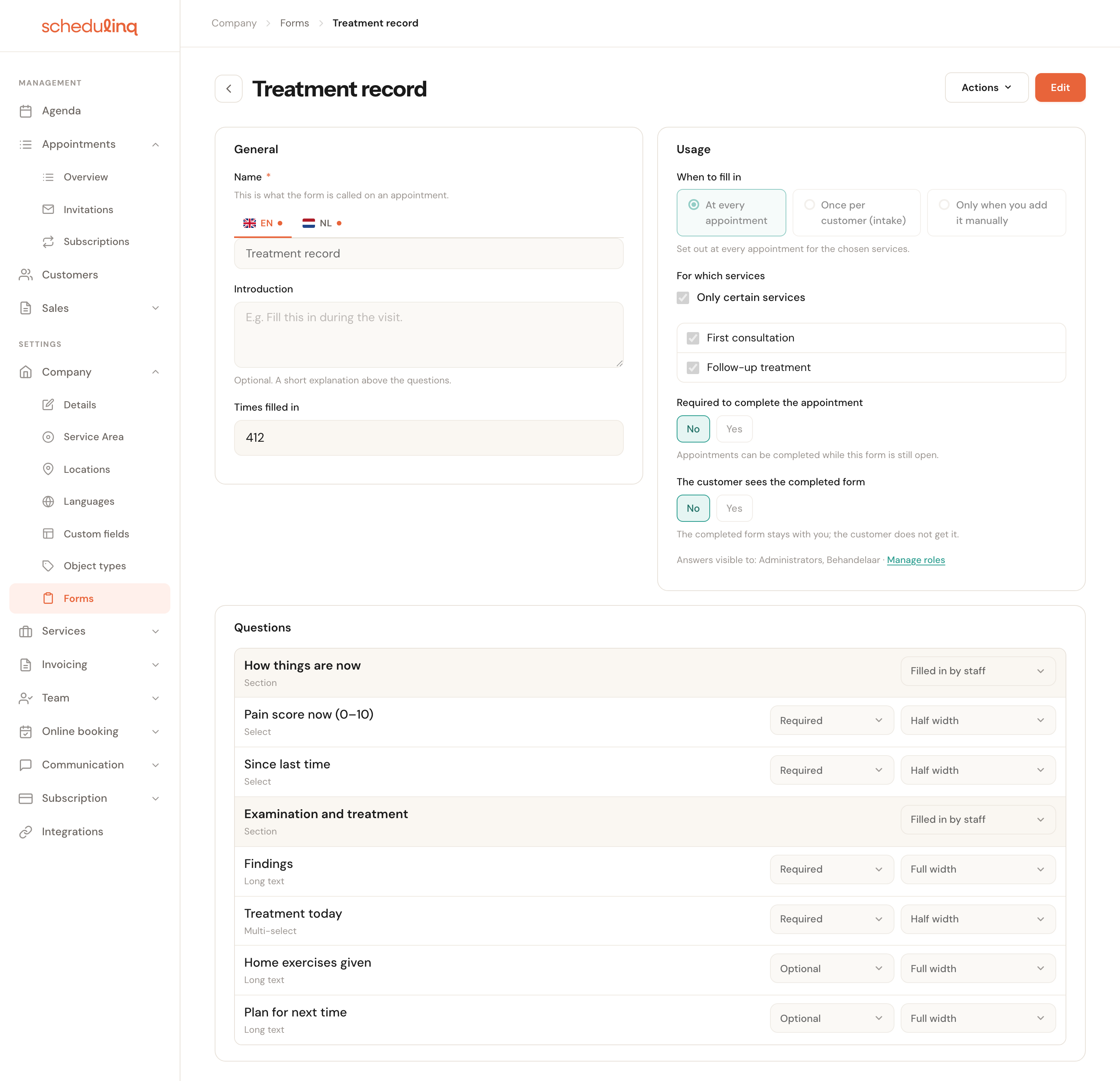
| Setting | Choice |
|---|---|
| When to fill in | At every appointment |
| For which services | Only certain services: First consultation, Follow-up treatment |
| Required to complete the appointment | No |
| The customer sees the completed form | No |
Section How things are now
| Question | Type | Required | Who fills it in | Why |
|---|---|---|---|---|
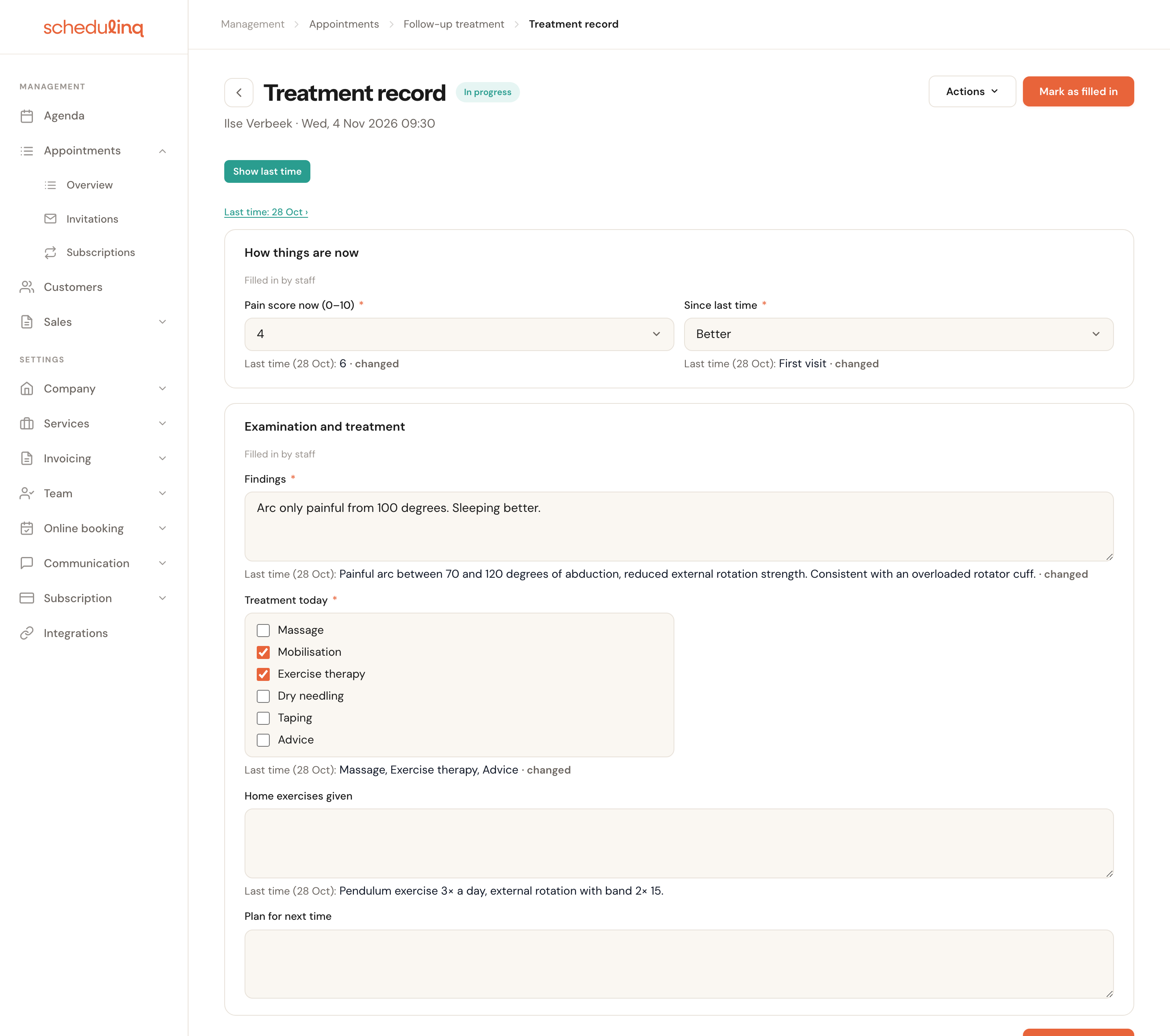
| Pain score now (0–10) | Select (0 to 10) | Yes | Staff | The line you follow across treatments. |
| Since last time | Select: Better, The same, Worse, First visit | Yes | Staff | How the customer experiences it, next to the score. First visit keeps the question required at the first visit too. |
Section Examination and treatment
| Question | Type | Required | Who fills it in | Why |
|---|---|---|---|---|
| Findings | Long text | Yes | Staff | What you saw and felt. The one free field that must always be filled in. |
| Treatment today | Multi-select | Yes | Staff | Massage, mobilisation, exercise therapy, dry needling, taping, advice. Ticks instead of text, so you can set them side by side later. |
| Home exercises given | Long text | No | Staff | You ask about them next time. |
| Plan for next time | Long text | No | Staff | A note to yourself, or to the colleague who takes over. |
Not required to complete
With Yes, an appointment can only be completed once the record is filled in or marked as not needed.
For a practice that never completes appointments by hand, that adds nothing — and when you issue an invoice such an appointment then stays open until the record is there. Switch it on only when you really want to enforce record keeping; how that works is in the work order for an installer.
Setting it up in Schedulinq
Make the questions
A question is a thing of its own that you put on one or more forms. You make them under Company → Custom fields, on the Form questions tab, or straight from a form with New question…. For a select and a multi-select question you fill in the answers under Options, per language. Whether a question is required is not set on the question but per form. See Build a form.
Make the intake
Go to Company → Forms and choose Add form. Give it a name and the introduction, choose Once per customer (intake) under When to fill in and tick the first consultation under For which services. Start with Add section, add the next sections with + Section, and fill each section with + Add question at its foot. Finally choose At home, asked automatically under Customer fills in.
Save and read the confirmation
Schedulinq asks whether you are sure, and adds: new customers get this intake with their first appointment, existing customers you ask yourself. Under the choice it then says from which day that applies.
Read the messages
On the first save Schedulinq sets up three e-mails for you: the request itself, a reminder four days later and a reminder two days before the appointment. You find them under Communication → Steps, in the Form flow. Adapt the texts to your practice. See The customer fills it in.
Make the treatment record
Add form again, now with At every appointment, the first consultation and the follow-up treatment ticked, and two sections set to Filled in by staff. The pain score questions in the intake and the record are two separate questions with the same choices — a question can sit on several forms, but here the wording differs.
Decide who reads the answers
Under Usage every form shows Answers visible to: the roles allowed to view forms. You set that under Settings → Team → Roles, with the Fill in and view switch under Forms. See Privacy below.
Book yourself as a new customer
With an e-mail address that is not in your customer list yet. Then you see the e-mail, the portal and the intake exactly as your customer does.
From booking to treatment
The customer fills in their intake
When a new customer books a first consultation, the e-mail with the request follows shortly. Its button takes them to the customer portal. If they had no access yet, they sign in with the address the e-mail went to, and the intake is right there. See What is the customer portal.
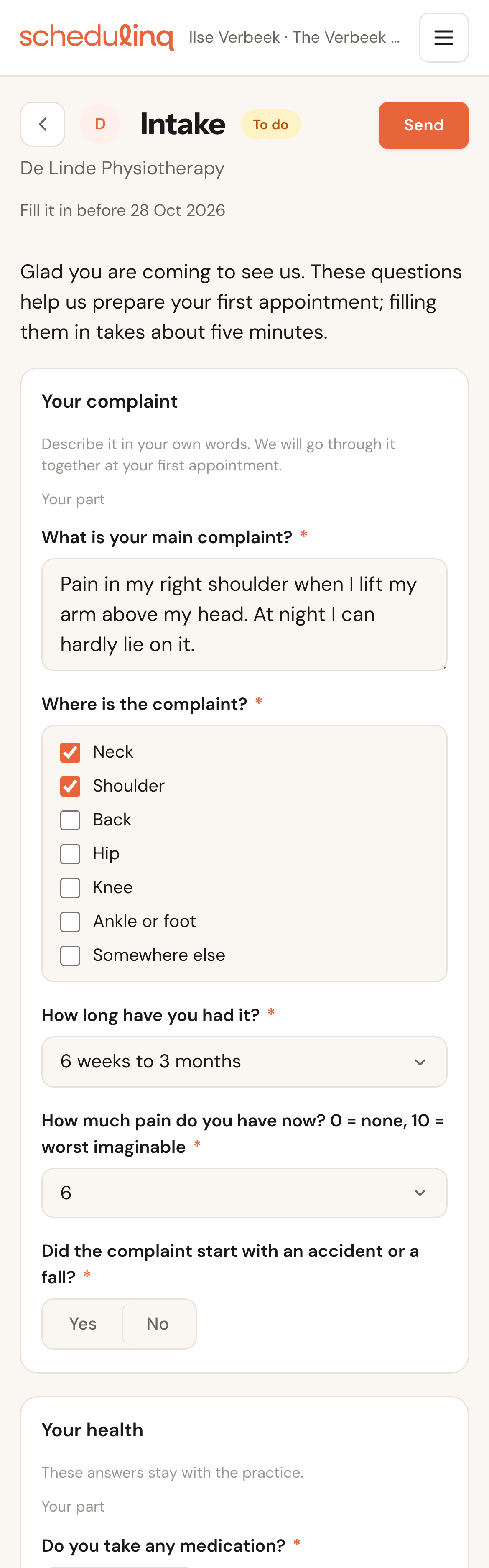
What your customer sees. Fill it in before is the start of their appointment; what they type is kept as they type.
They do not have to finish in one go. Send completes it; until their appointment starts they can still open it with Change. If you move the appointment, that date moves along, and so do the reminders.
Two cases do not happen by themselves:
Customers you already had
Only customers who are new since you set the intake to automatic get it by themselves. For the others, choose the Intake: not asked filter in Customers, open a customer and choose Actions → Send intake.
That way your whole customer list does not get an e-mail at once about a form they never expected. You decide who you ask, and when.
A customer without an e-mail address
Then there is nothing to send. On the customer record the Intake card says to fill it in together with the customer, with the Fill in on the customer's behalf button. Do that at the start of their first appointment.
You read it before the appointment
The intake belongs to the customer, not to the appointment: it holds for every visit still to come. Open the customer — from the appointment that is one click on their name — and look at the Intake card.
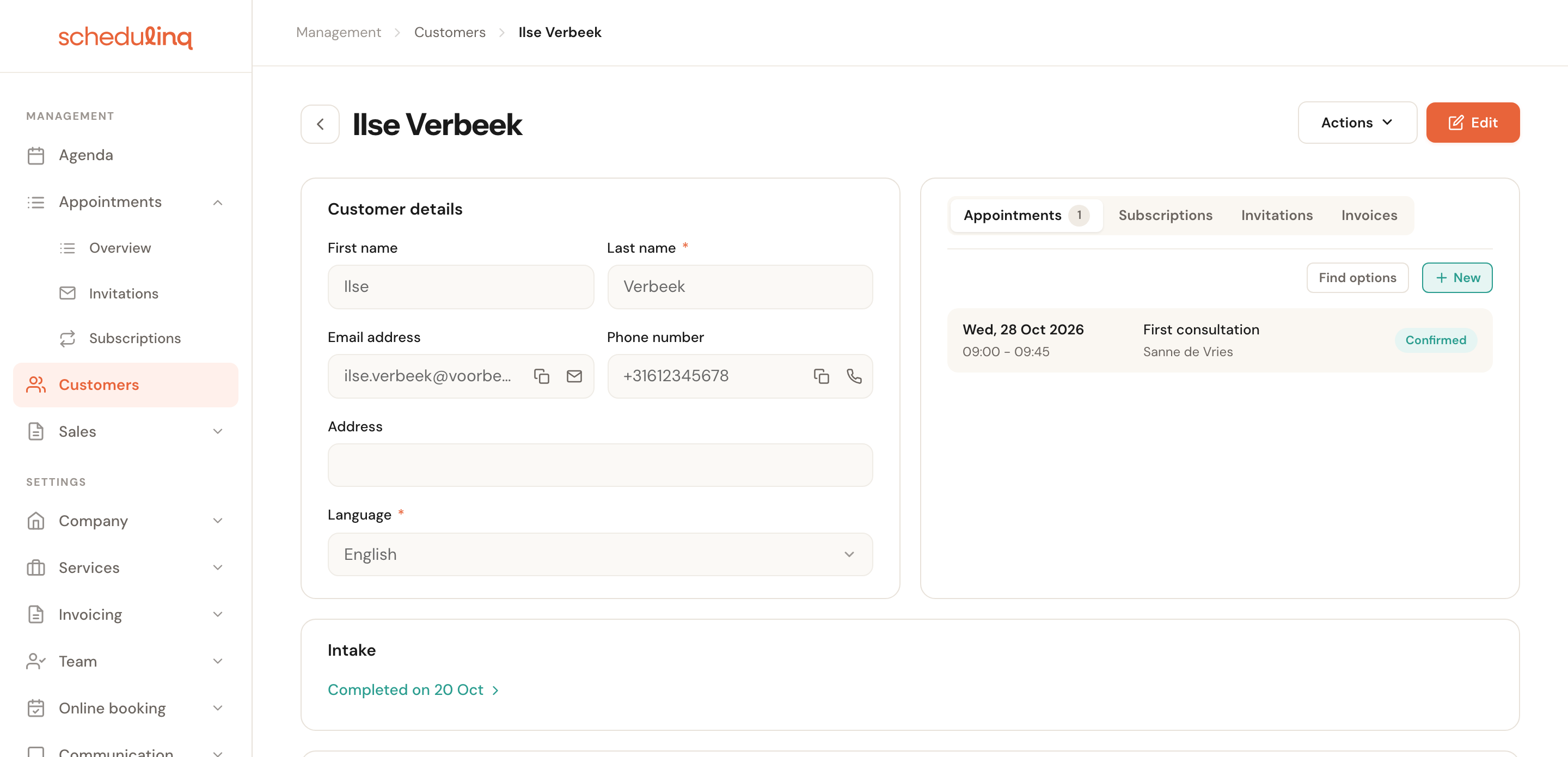
The card says where the intake stands: requested, in progress, completed. Completed on opens the answers.
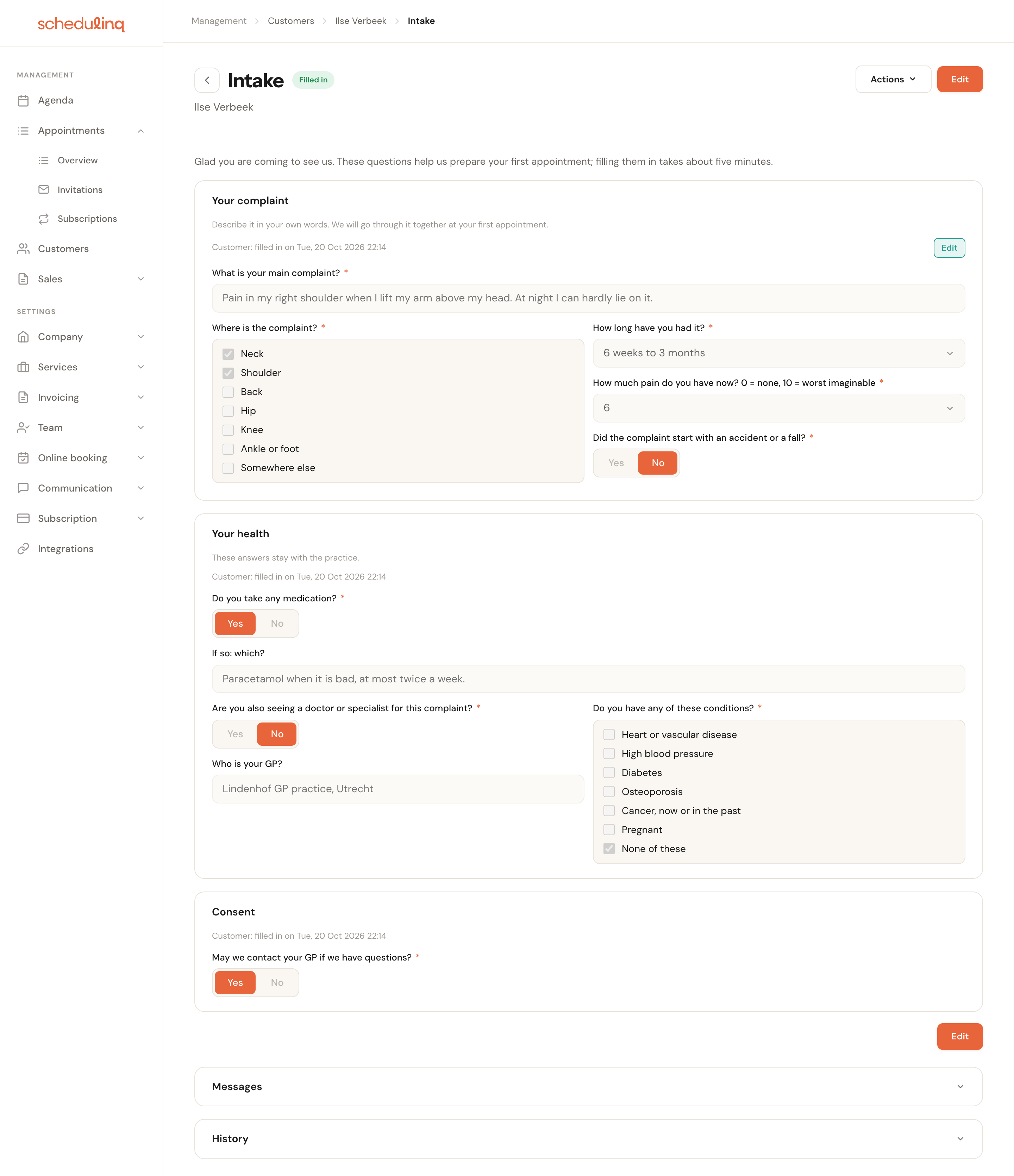
The same intake is also in the customer's Notes, as Form · Intake, among your own notes. If you want it on paper, choose Actions → Download PDF. See Answers and history.
During the visit: the treatment record
On the appointment the record is waiting under Forms, and the top of the appointment shows the Fill in form button. What you type is saved by itself. When you are done, choose Mark as filled in. See Fill in a form.
At the follow-up: what did it say last time?
Open today's record and choose Show last time. Under every question appears what was filled in last time, with changed where today's answer differs.
Last time is the last record that was filled in
Schedulinq looks for this customer's last treatment record that is Filled in.
A record you typed but never marked as filled in does not count. Forget that at the first consultation and the second appointment shows nothing — and the third shows the wrong visit. Nothing is ever carried over by itself, either: last time's answers are to read, not to copy.
Privacy
An intake is about someone's health. Four things to know:
Answers stay in the form
What your customer fills in never ends up on their customer record. It does not appear as a column in your overviews and you cannot search on it. No e-mail or text message can put an answer in its text; only a form you share with the customer can go along as a PDF with the Form completed message — and the intake and the record are not shared.
Who may read applies to all forms at once
The Fill in and view switch in a role applies to every form, not per form. Whoever may read a colleague's work order may also read the intake.
If you have a receptionist who schedules appointments but should not see medical details, switch it off for their role. That colleague still sees on an appointment that there is a form and how far along it is, but cannot open it. Which roles read along now is on every form under Answers visible to. See Roles and permissions.
The customer sees their own answers
In the portal, and only those. The treatment record is set to The customer sees the completed form: No and stays with you.
Deleting a form for good
If a customer asks you to erase their data, or an intake is on the wrong customer, open it and choose Actions → Delete. You type the form's name to confirm. The answers, the history and the stored PDFs go; the messages that were sent stay, without their PDF. What was already downloaded or e-mailed, nobody can call back.
Only someone who also has Mark as not needed under Forms and may see all customers can delete. Whether you may erase a record depends on what your profession obliges you to keep; Schedulinq does not decide that for you.
Mind one thing with an intake: after deleting it, Schedulinq no longer knows this customer was asked. If they book a first consultation again, they get the intake again. If you do not want that, use Withdraw request while it has not been filled in yet: a withdrawn intake is never asked automatically again.
Frequently asked questions
A customer says they never got an e-mail. Look at the Intake card on their record. If it says Not sent, no e-mail message is set up for Form requested — the link takes you to the place to set it up. If it says Intake requested on …, check under Messages on the same card what was sent, and whether it is in their spam.
I imported my customer list only after switching it on. Then those customers are new to Schedulinq, and they get the intake with their next first consultation. If you do not want that, import before you set the intake to automatic.
Appointments from my connected calendar get no intake. Right: only an appointment that starts in Schedulinq itself — booked online, scheduled by you, from an invitation or a subscription — asks for it. Send it by hand for such a customer.
Can the customer fill in the intake in the waiting room? Yes, on your own tablet: open their record and choose Fill in on the customer's behalf on the Intake card. You then see their part and can finish it together.
Can I change the intake later? Yes. An intake that was already filled in stays as it was, with the questions of the time. Whoever fills it in after the change gets the new questions.
Can I use a question from the intake in the record too? A question can sit on several forms; the Form questions list shows for every question where it is used. Show last time only compares within the same form, though: the pain score from the intake does not appear under the one in the first record.
Does this work for a veterinary practice? Yes. Start the questions with your pet or your horse, and know that an intake goes per customer, not per animal: someone who comes with two dogs fills it in once.