

What is the customer portal?
A place of their own for your customers at portal.schedulinq.com, with their appointments, invoices and forms at your business and at any other business that uses Schedulinq — and why you would offer it.
The customer portal is where your customers log in. Not you and your colleagues — you work in the dashboard — but the people you work for. They find it at portal.schedulinq.com and see there, without phoning you:
- their upcoming and past appointments with you, with the price, the address and the link to change or cancel;
- their invoices, as a PDF to download;
- the installations, appliances or other objects you keep track of for them;
- the forms you ask them to fill in;
- and a Book an appointment button that books with you without typing their details in again.
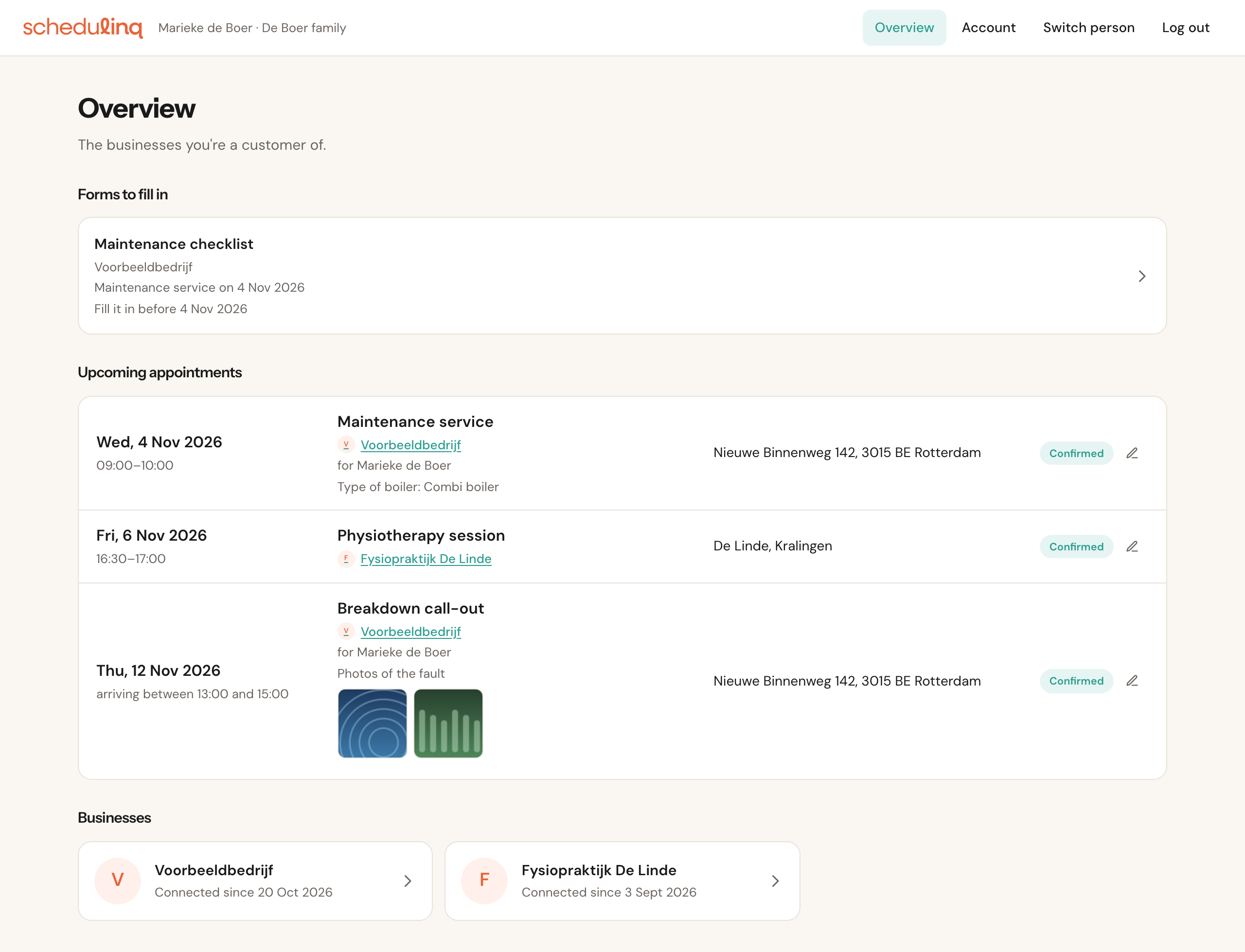
The overview of a customer of two businesses: everything in one place, including what is not yours.
Why you would offer it
- Fewer phone calls. "When are you coming again?", "Could you send that invoice once more?", "What did last year's service cost?" — it is all there.
- Returning customers book faster. A logged-in customer types no name, email address or phone number and gets no email code. With Book again on a past appointment, the service is already chosen.
- You can give your best customers priority. A priority client also sees times your schedule would normally not offer — for a surcharge if you like.
- Forms come back sooner. A customer fills in a form you send him in the portal, and sees there what is still open.
How it works: accounts, people, businesses
The portal belongs to the customer, not to you. You notice that in how it is put together.
Account
A household or a business: De Boer family, Studio De Boer. An account belongs to one email address: everyone in the account logs in with it.
One address for the whole household is deliberate: whoever can read that address can open everyone in the account. Someone who wants to keep something separate creates an account of their own with an email address of their own. One email address can have several accounts, though — private and business, for example.
Person
Someone in the account, with their own name, phone number, address and language. After logging in, the customer chooses who he opens the portal for; he can switch later.
That way Marieke and Jeroen share one login and still each see their own appointments. You connect a customer record to a person, not to the whole household.
Connection
An account is connected to every business that invited it. One customer can have you, his physiotherapist and his gardener in the same portal — each business sees only its own customer records, and the customer sees, per business, what that business lets him see.
A connection comes about only when the customer accepts an invitation from you. A customer who happens to have the same email address as one of your customer records sees nothing of it until you invite him.
What the customer sees always goes per customer record in your dashboard. You invite a customer record, the customer chooses which person in his account it belongs to, and from then on that person sees that record's appointments and invoices. If one person has two records with you — his own and his company's — he sees both, after two invitations.
How a customer gets in
- You open the customer record, choose Actions → Customer portal and click Invite to the portal. See Invite a customer.
- The customer gets an email in your branding, opens the link and logs in with a code by email, or with Google or Microsoft.
- He chooses who the invitation is for — himself, someone else in his account, or a separate account — and is connected.
A customer you send a form gets access along with it: the invitation rides in the form's email.
What it does not do (yet)
Worth knowing before a customer asks:
- No roles inside an account. Everyone in an account may do everything in it: add people, withdraw connections, delete the account.
- No email address per person. Everyone in an account logs in with the account's address.
- No notification settings in the portal. Confirmations and reminders come from your communication as always.
- Booking for an object is not possible yet. The customer sees his installations and their appointments, but does not choose an object when booking.
- You cannot create an account for a customer. The customer creates it himself, by logging in.
- The customer changes nothing on your customer record. Name, phone number and address in the portal are the customer's own; your record does not change. The only things a customer writes back to you from the portal are bookings and answers to forms.