

A digital work order for boilers and heat pumps
A worked example for an installer — the technician fills in the work order on a phone, the customer signs on the spot, the appointment only closes once the work order is there, and the customer gets it as a PDF.
The technician is in the loft with a gas boiler. He measures the pressure and the CO level, cleans the burner, replaces an ignition electrode and writes it all on a carbon-copy work order. The customer scribbles a signature under it. That work order then spends a week in the van, gets typed up at the office — if the handwriting is legible — and next year nobody remembers what the CO level was.
This page replaces that work order with a form in Schedulinq. The technician fills it in on his phone, with photos; the customer signs on the screen; the appointment can only be completed once the work order is done; and the customer gets it as a PDF in his e-mail. Next year, last year's readings are under the questions.
One work order per kind of appliance
A form reaches an appointment through the service. You say: this work order belongs to Boiler service and Boiler breakdown, and every appointment for those services gets it by itself.
You measure a boiler and a heat pump differently: a heat pump has no flue gas, a boiler has no refrigerant circuit. And a question that only appears when the appliance is a boiler does not exist. So:
| Service | Work order |
|---|---|
| Boiler service | Boiler work order |
| Boiler breakdown | Boiler work order |
| Heat pump service | Heat pump work order |
| Heat pump breakdown | Heat pump work order |
If you now have one Breakdown call-out service for everything, every breakdown gets two work orders — and with Required to complete the appointment on, both have to be filled in or marked as not needed. Split such a service per appliance. It helps your customer on the booking page too: they pick the right one straight away, and you know which technician to send.
The two work orders share most of their questions: you make a question once and put it on both. Only the measurements differ.
How it runs
The appointment gets the work order by itself
Whether the customer books it, you schedule it or it comes from a maintenance contract: an appointment for a boiler has the boiler work order straight away.
The technician fills it in on his phone
Measurements, work done, parts, photos, advice. Everything is saved as he types.
The customer signs on the spot
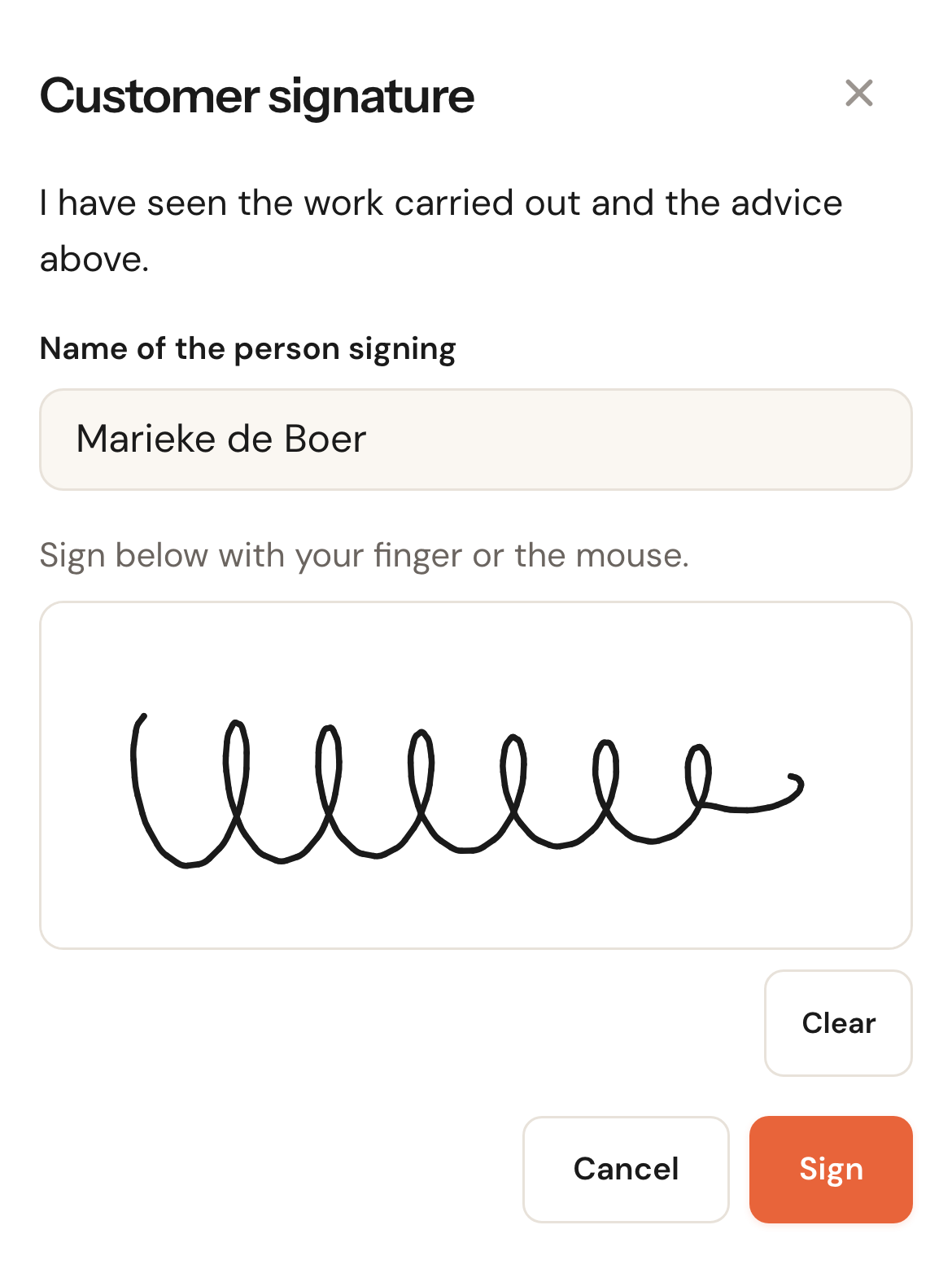
On the same phone, with a finger. After that the work order is fixed.
Only then can the appointment be completed
While the work order is open, the appointment stays open — and you see that in the agenda.
The customer gets the work order as a PDF
In the e-mail he gets as soon as the work order is done, or right away through WhatsApp with Share.
The boiler work order
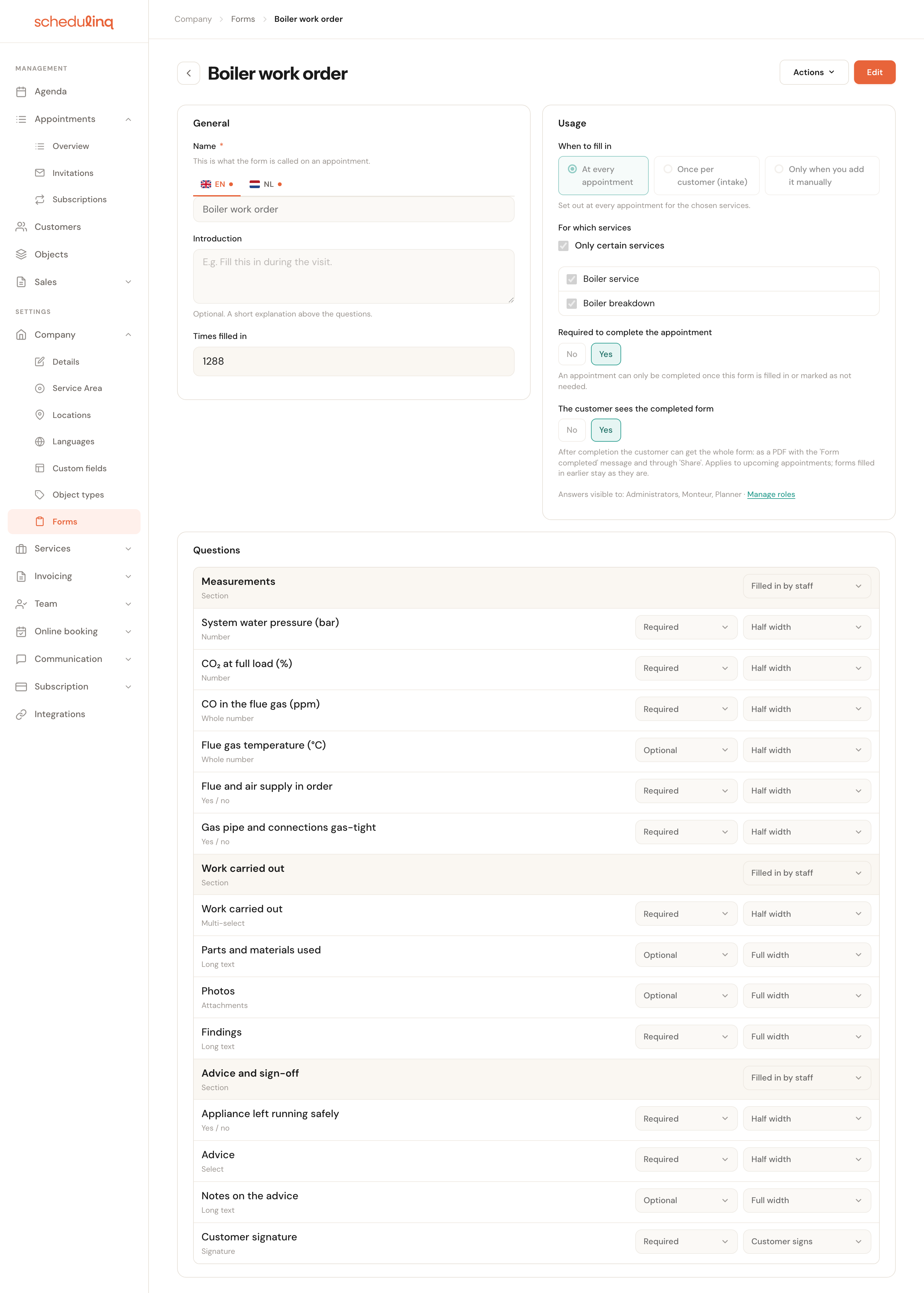
Three sections, all for the technician. The customer's signature is the last line of the last section.
| Setting | Choice |
|---|---|
| When to fill in | At every appointment |
| For which services | Only certain services: Boiler service, Boiler breakdown |
| Required to complete the appointment | Yes |
| The customer sees the completed form | Yes |
Section Measurements
Explanation: Measure after the service or repair, with the boiler at full load.
| Question | Type | Required | Who fills it in | Why |
|---|---|---|---|---|
| System water pressure (bar) | Number | Yes | Technician | With decimals: 1.5 bar. Low pressure is the complaint that comes back most. |
| CO₂ at full load (%) | Number | Yes | Technician | Tells you whether the burner is set up right. |
| CO in the flue gas (ppm) | Whole number | Yes | Technician | The safety reading. The analyser gives whole numbers; hence a whole number. |
| Flue gas temperature (°C) | Whole number | No | Technician | Not every analyser gives it; optional, so the work order does not get stuck on it. |
| Flue and air supply in order | Yes / no | Yes | Technician | A no should come back in the findings. |
| Gas pipe and connections gas-tight | Yes / no | Yes | Technician | Likewise. |
The unit in the question
A number question has no unit and no minimum or maximum. So put the unit in brackets in the question: (bar), (%), (ppm).
Without a unit one technician types 1.5 and another 150 (kPa), and then last time means nothing. The unit in the question also appears in the PDF the customer gets. A question can show an example in grey, such as E.g. 1.5: then it is clear at once how precise you want it.
Section Work carried out
| Question | Type | Required | Who fills it in | Why |
|---|---|---|---|---|
| Work carried out | Multi-select | Yes | Technician | Burner cleaned, heat exchanger cleaned, condensate trap cleaned, expansion vessel checked, system topped up, system bled, part replaced. Ticks are quicker than typing on a phone. |
| Parts and materials used | Long text | No | Technician | One line per part, with quantity. Free text, because Schedulinq does not know your stock. |
| Photos | Attachments (photos, at most 10) | No | Technician | The rating plate, the old electrode, a leaking valve. Full width. |
| Findings | Long text | Yes | Technician | What the customer needs to know, in plain words: he reads this too. |
Parts on the work order are not on the invoice
What the technician puts under Parts and materials used stays on the work order. No invoice line comes from it, and the object is not updated by it.
Answers on a form never go anywhere else — that is a deliberate choice. Whoever makes the invoice adds the parts themselves; open the work order next to it. See Create an invoice.
Photos: ten is enough
A photo question on a form can take up to twenty photos. Set on the question how many you want.
Every photo goes into the PDF, two side by side. Twenty photos make a work order of several pages your customer will not read. With a maximum of ten, the technician picks the photos that show something.
Section Advice and sign-off
| Question | Type | Required | Who fills it in | Why |
|---|---|---|---|---|
| Appliance left running safely | Yes / no | Yes | Technician | The last thing he checks before leaving. |
| Advice | Select | Yes | Technician | No action needed, replace a part soon, replace the appliance within 2 years, appliance taken out of service. Fixed choices, so you can later see which customers to call about a replacement. |
| Notes on the advice | Long text | No | Technician | For anything that does not fit a choice. |
| Customer signature | Signature — Customer signs | Yes | Customer, on the technician's phone | With the statement I have seen the work carried out and the advice above. |
The signature comes last
A signature is not a question but a line of its own on the form, and it can only sit in a section staff fill in.
As soon as the customer signs, the whole work order is fixed: nobody can change an answer, a photo or a tick in it any more. So put it at the bottom, where the customer signs for what is really there. What it said at signing is recorded with a check value; that is in the PDF too.
Required, or not?
With Required, the work order is only filled in once the customer has signed — and the appointment can only be completed once the customer has signed.
At a breakdown the customer is always there. At a service usually, but not always: the key is with the neighbours. If that happens to you often, set the signature to Optional. Then have the customer sign before the technician chooses Mark as filled in: signing completes the work order straight away, with the signature in the e-mail. The other way round, the e-mail goes out before the customer has signed.
The heat pump work order
The same structure. The sections Work carried out and Advice and sign-off you take over with the same questions, except Work carried out (see below). The measurements are different:
| Question | Type | Required | Why |
|---|---|---|---|
| System water pressure (bar) | Number | Yes | The same question as on the boiler work order. |
| Flow temperature (°C) | Number | Yes | The difference with the return temperature tells you whether the system gives off its heat properly. |
| Return temperature (°C) | Number | Yes | See above; with Show last time you see whether the difference grows. |
| Refrigerant circuit leak-checked | Yes / no | Yes | What you have to record for a heat pump depends on the appliance; include what you need to be able to show. |
| Condensate drain clear | Yes / no | Yes | The classic cause of a breakdown in winter. |
For Work carried out you make a separate question for the heat pump with its own choices (filter cleaned, evaporator cleaned, …): the boiler question's choices do not fit it.
Setting it up in Schedulinq
Split your services per appliance
If they are not already. See Create an appointment type.
Make the questions
Under Company → Custom fields, Form questions tab, or from the form with New question…. For the photo question choose the type Attachments, only Photos under Allowed file types, and set Maximum files to 10. A question can also have Reference images — where the rating plate is, for instance — which the technician sees above the question. See Build a form.
Make the work order
Company → Forms → Add form. Name, At every appointment, the two boiler services ticked. Three sections set to Filled in by staff, and in the last one, under the questions, + Signature with Customer signs.
Switch both switches on
Required to complete the appointment: Yes and The customer sees the completed form: Yes. On saving, Schedulinq tells you how many upcoming appointments get the work order, and how many of them can only be completed once it is filled in. Customers are not notified.
Set up the e-mail with the PDF
This does not happen by itself. Go to Communication → Steps, choose the Form flow and add a step: When a form is completed, by e-mail, to the Customer, with Attach PDF on. See Answers and history.
Check who may do what
A technician needs Fill in and view under Forms; give Mark as not needed only to whoever may decide a work order is unnecessary, usually the planner. As long as only administrators could fill in the work order, the form warns you about it itself. See Roles and permissions.
Make the heat pump work order
The same, with the two heat pump services and its own measurements. You pick the shared questions from the list under + Add question.
On the day
In the agenda and on the appointment
An appointment whose work order is still open has a clipboard with an exclamation mark in the agenda: Work order not filled in yet. The top of the appointment says why it cannot be completed yet, and the work order is under Forms.
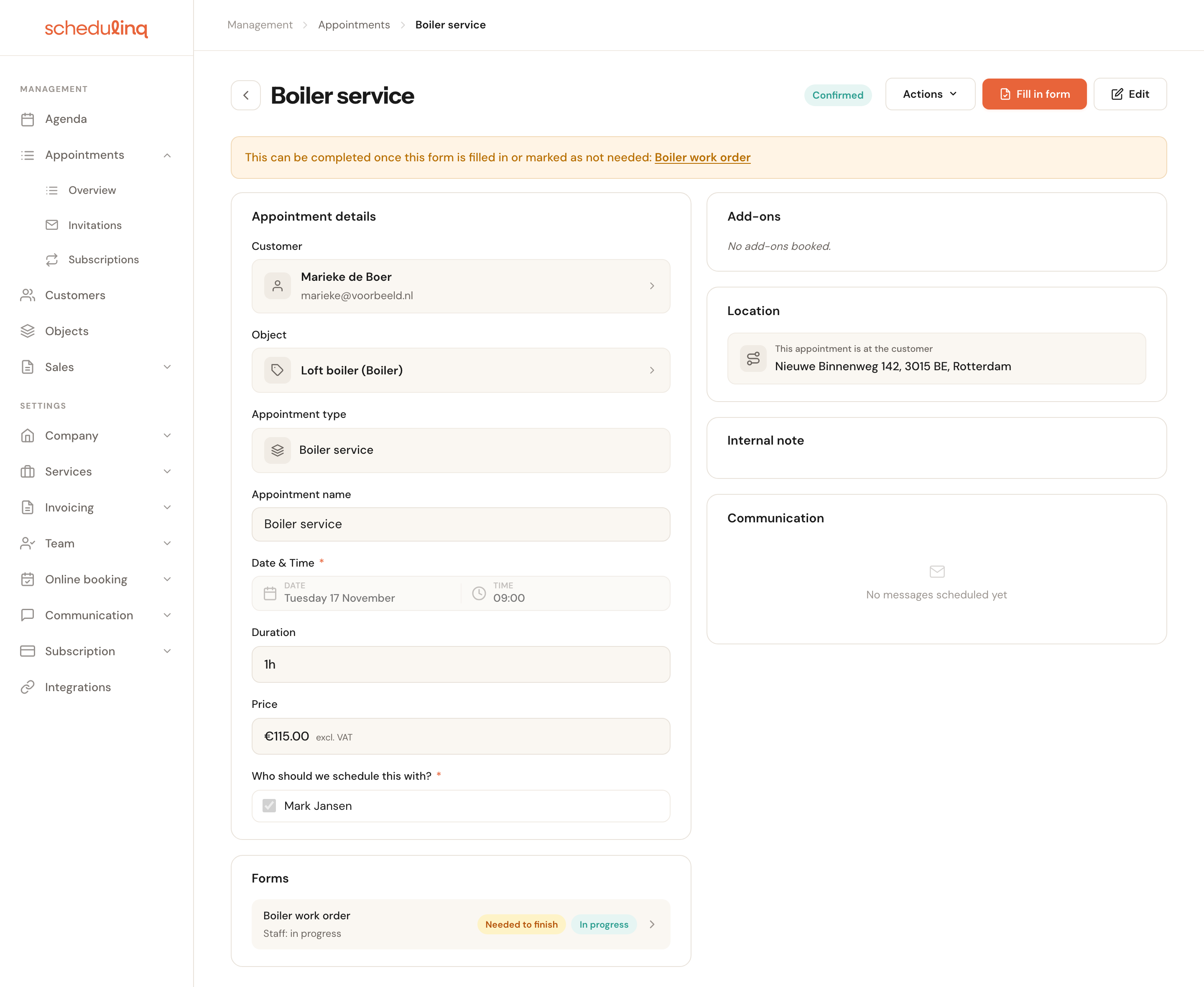
Fill in form at the top takes the technician straight to the work order.
The technician fills it in
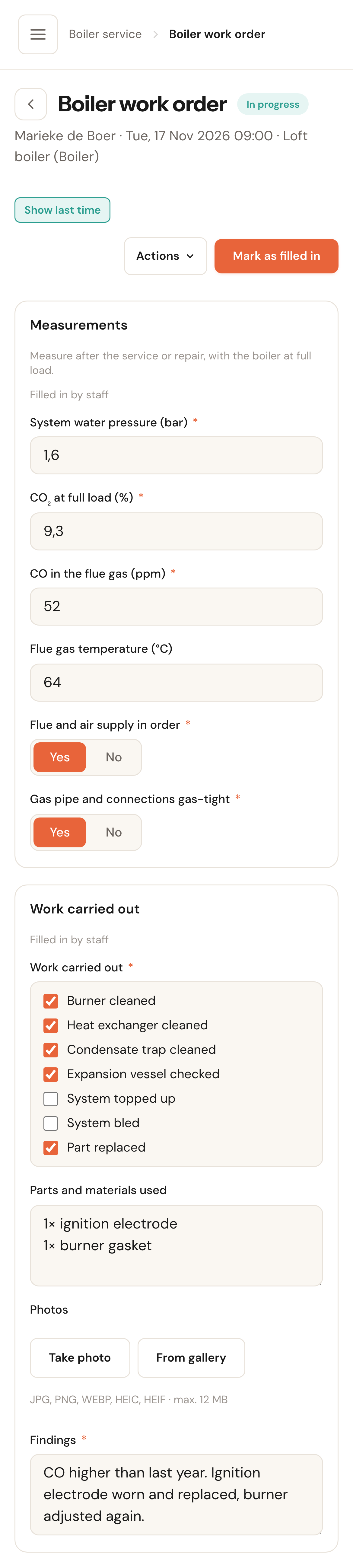
On his phone the work order opens as one column, section under section. Everything is saved as he types — there is no save button. For the photos a phone shows two buttons: Take photo opens the camera, From gallery picks a photo he already had. Large photos are made smaller before they are sent, so even in a loft with poor reception that goes quickly. See Fill in a form.
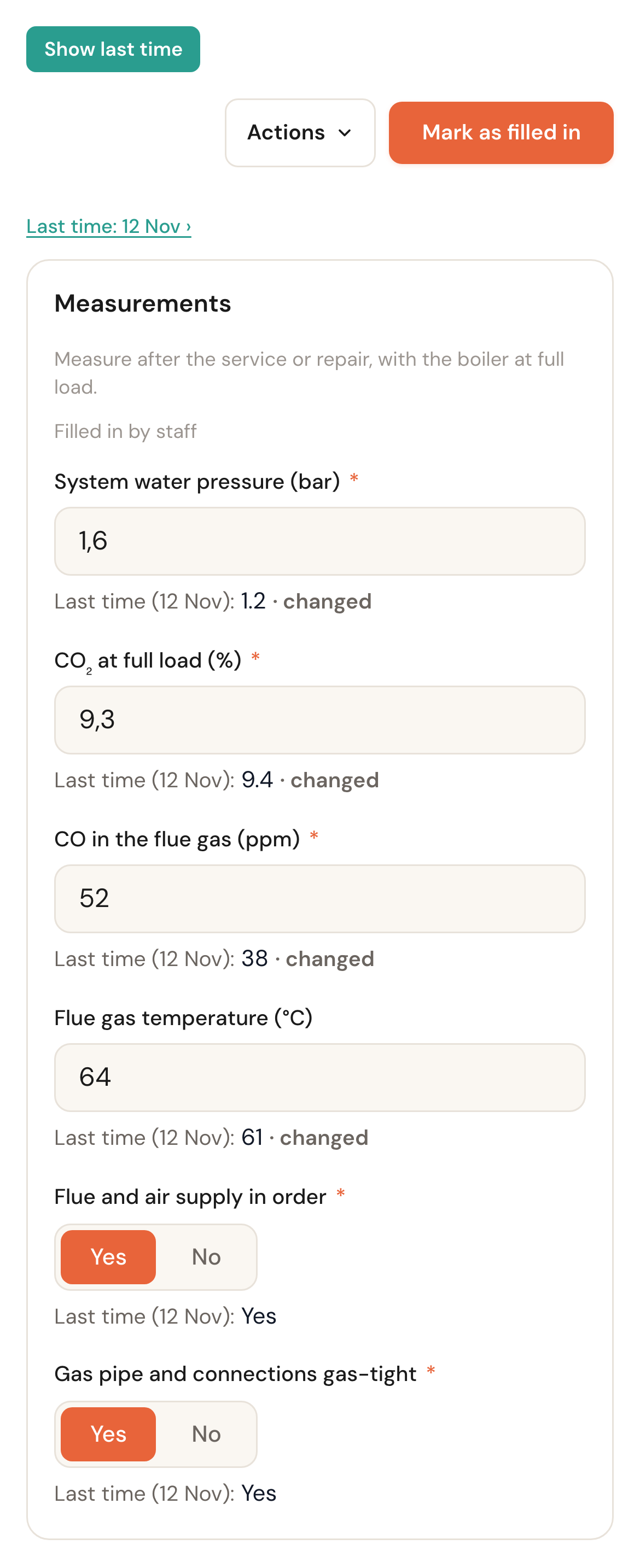
What was it last year?
With Show last time, every question shows what was filled in at the previous visit to this appliance, with changed where it differs now. A CO reading that goes from 38 to 52 ppm stands out at once.
Last time belongs to the object
If the appointment names an object, Schedulinq looks for the last filled-in work order of that boiler — not of the heat pump the same customer also has.
That only works when the object is on the appointment. Without an object, Schedulinq takes the customer's last work order, whichever appliance it was for. Let your customers choose their appliance when booking, or add it yourself. See Customer objects.
Done: mark, sign, complete
Mark as filled in
If a required answer is still missing, the page jumps to it and nothing else happens.
Have it signed
That button is now at the top. The technician hands his phone to the customer; the name is already filled in, the customer signs with a finger and chooses Sign.
Complete appointment
As soon as the work order is done, the button becomes Complete appointment. A technician who is on the appointment may do that himself once the appointment has started, even if he may not otherwise change appointments.
The customer gets his work order
The moment the work order is done, the e-mail you set up under Setting it up goes out, with the work order attached as a PDF. That PDF holds your logo, the customer, the address, the date, the appliance, every answer, the photos and the signature with its check value. Colleagues' names are left out of the customer's version.
Does the customer want it right away, or has he no e-mail address? Then choose Actions → Share on the phone: the phone's share menu opens, and you send the PDF through WhatsApp or another app. On a computer there is no Share; use Download PDF there. If the customer has access to the customer portal, the work order is there too, under Forms.
The work order, the appliance and the contract
The appliance gets the work order in its history
The object's page lists every work order of that appliance, including those of a previous owner. The answers are not written into the object itself: year built and serial number stay the object's own fields, so you do not ask for them again on the work order.
A replaced part you add to the object yourself
Does an appliance have a Parts card, with a serial number and warranty per part? Then the technician updates it with Add part on the object's page. The work order does not do that for him.
Maintenance contracts get the work order by themselves
An appointment your customer books from the yearly invitation of his maintenance contract is a Boiler service appointment like any other, and so it gets the work order. You do not have to do anything for it.
Frequently asked questions
The customer was not there to sign. With a required signature the work order stays on Awaiting signature, and the appointment open. If you come back later, you have it signed then. If that is not the plan, a colleague with Mark as not needed can close the whole work order through Actions → Not needed… with a reason — but then it is not filled in and nothing goes to the customer. If this happens often, set the signature to Optional (see above).
There is a mistake in a signed work order. Choose Reopen and give a reason. The signature is voided (and stays visible as voided), the work order opens again, and after the correction you have it signed again. The customer then gets the corrected work order by e-mail again. Reopening is for whoever has Mark as not needed, or the technician who had it signed, as long as the appointment has not been completed.
I am making an invoice for an appointment whose work order is still open. That is fine: the invoice never waits for a work order. The appointment just stays open until the work order is filled in; Schedulinq tells you which appointments it could not complete.
Which work orders are still open? In Appointments → Overview, choose the Forms: work order not filled in filter. Switch on the Forms column and you see it per row too. See The appointments overview.
The technician briefly had no reception. What he typed is still on his screen and Schedulinq keeps trying to save it; under the title it says Not saved: no connection, trying again until it works. Have him not close the page until it says Saved again.
Can the customer fill something in beforehand, like a breakdown's error code? Yes, with a section set to Filled in by the customer, and At home, when you send it under Customer fills in. You send that request by hand, per appointment. How the customer's part counts before you can complete the appointment is in The customer fills it in.
Can I add a work order to an appointment that did not get it by itself? Yes, with + Form on the appointment's Forms card — for example an appointment that was already past when you made the work order. That only works on an appointment for one of the work order's services. A job without an appointment? Then start the work order from the customer or the object, in the Notes.