

What your customer sees
The portal through your customer's eyes — logging in, choosing a person, the overview, your business page with appointments, invoices and objects, and his account. With the answers to the questions you get on the phone.
This page walks through the portal as your customer sees it, so you can explain where things are and know what he does and does not get to see from you. The examples are of the De Boer family: Marieke and Jeroen, one login, customers of yours (Voorbeeldbedrijf) and of a physiotherapist.
Logging in
The portal is at portal.schedulinq.com. There is no password: the customer proves the email address is his.
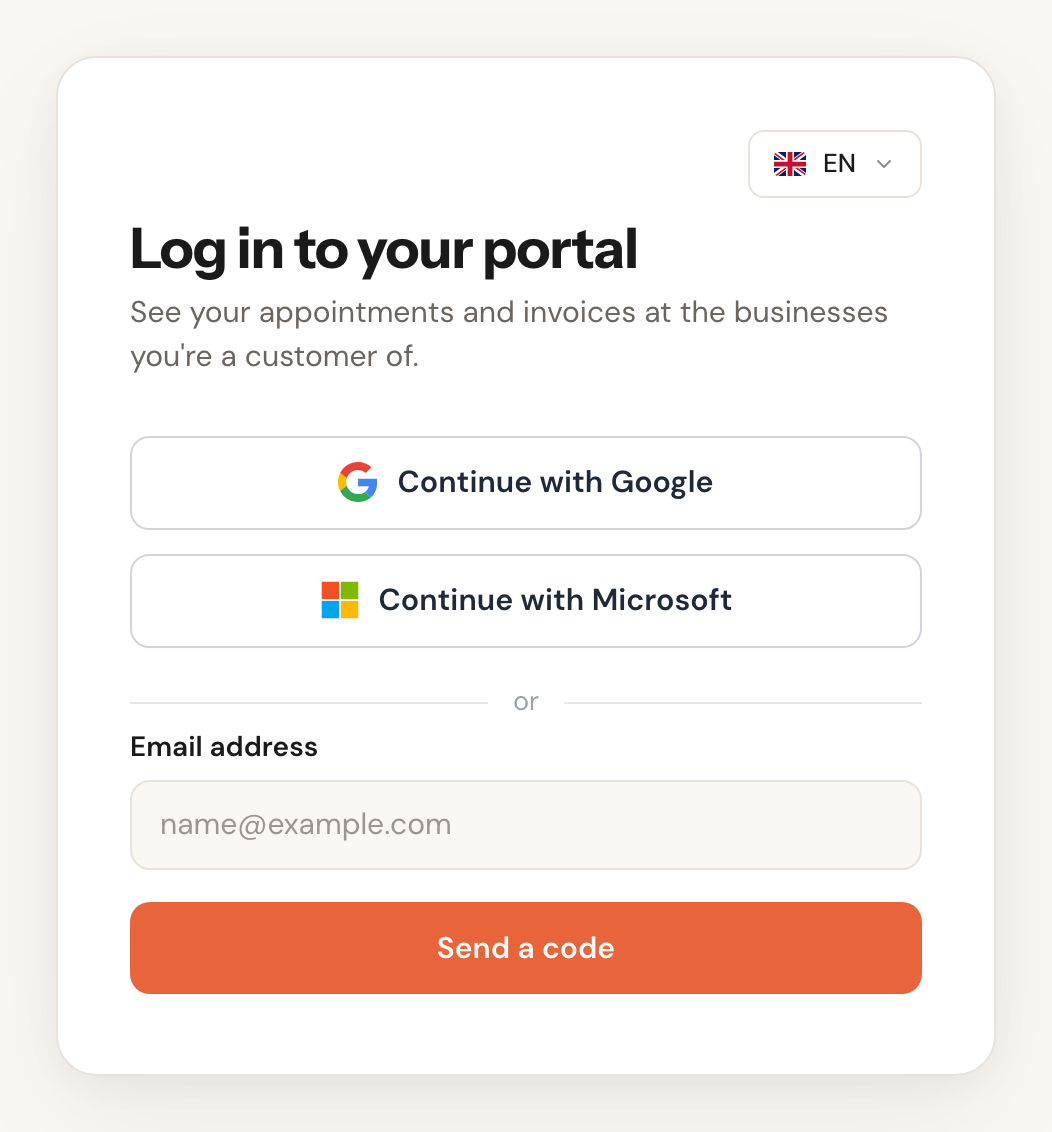
Continue with Google or Microsoft
Logging in with the Google or Microsoft account that belongs to the email address. No email, no code.
If Microsoft cannot confirm a work account's email address, the portal says We couldn't confirm your email address through Google or Microsoft. Log in with a code instead. and the customer continues with a code to the same address.
Send a code
6 digitsValid for 10 minutesThe customer enters his email address and gets an email Your Schedulinq login code with six digits. As soon as the sixth digit is typed, he is logged in.
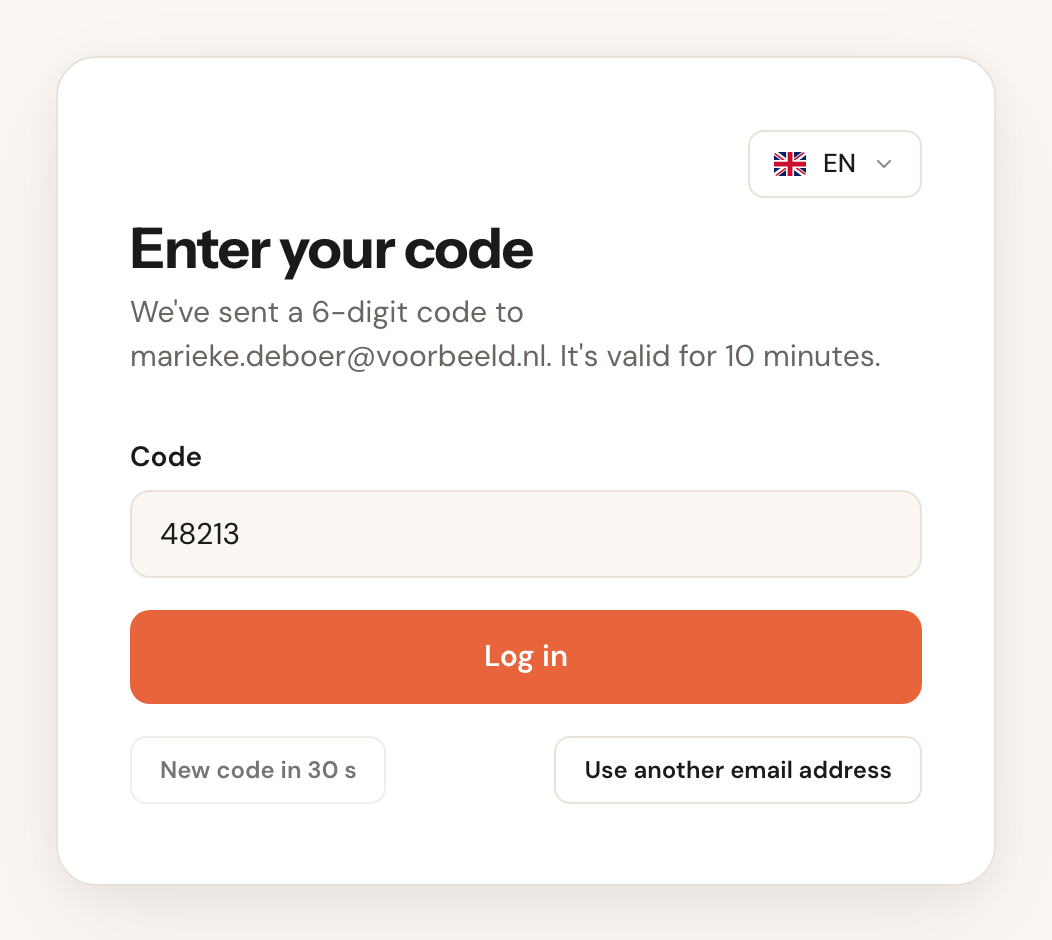
Anyone can log in with any email address: the first time, the portal creates an account for it. Only once you invite him does the customer see anything of yours.
The portal has its own language choice at the top right. After logging in it follows the Language the customer sets on his person.
When the code does not work
These are the questions you get on the phone, with the answer:
- "I'm not getting a code." Check the spam folder first. A new code can be requested after 30 seconds (Send a new code). At most three codes per quarter of an hour and ten a day go out per email address; beyond that the screen still says the code was sent, but no email arrives. Waiting helps — or logging in with Google or Microsoft, which is outside that limit.
- "This code is incorrect." A typo, or an old code: each new code makes the previous one invalid. Use the latest email.
- "This code has expired." A code works for 10 minutes. Request a new one.
- "Too many wrong codes." After five wrong tries a code stops working. Request a new one.
- "Your session has ended. Please log in again." A customer stays logged in as long as he uses the portal; after 30 days without a visit he has to log in again. He also sees this when you withdraw his access or he removes his person. Just log in again.
The portal has a session of its own, separate from the dashboard. If you use the dashboard on the same computer yourself, you stay logged in there when you log out of the portal, and the other way round.
Who are you?
If the email address has more than one person — in one account or in several — the portal asks after every login who the customer is opening it for. With one person it skips the question.
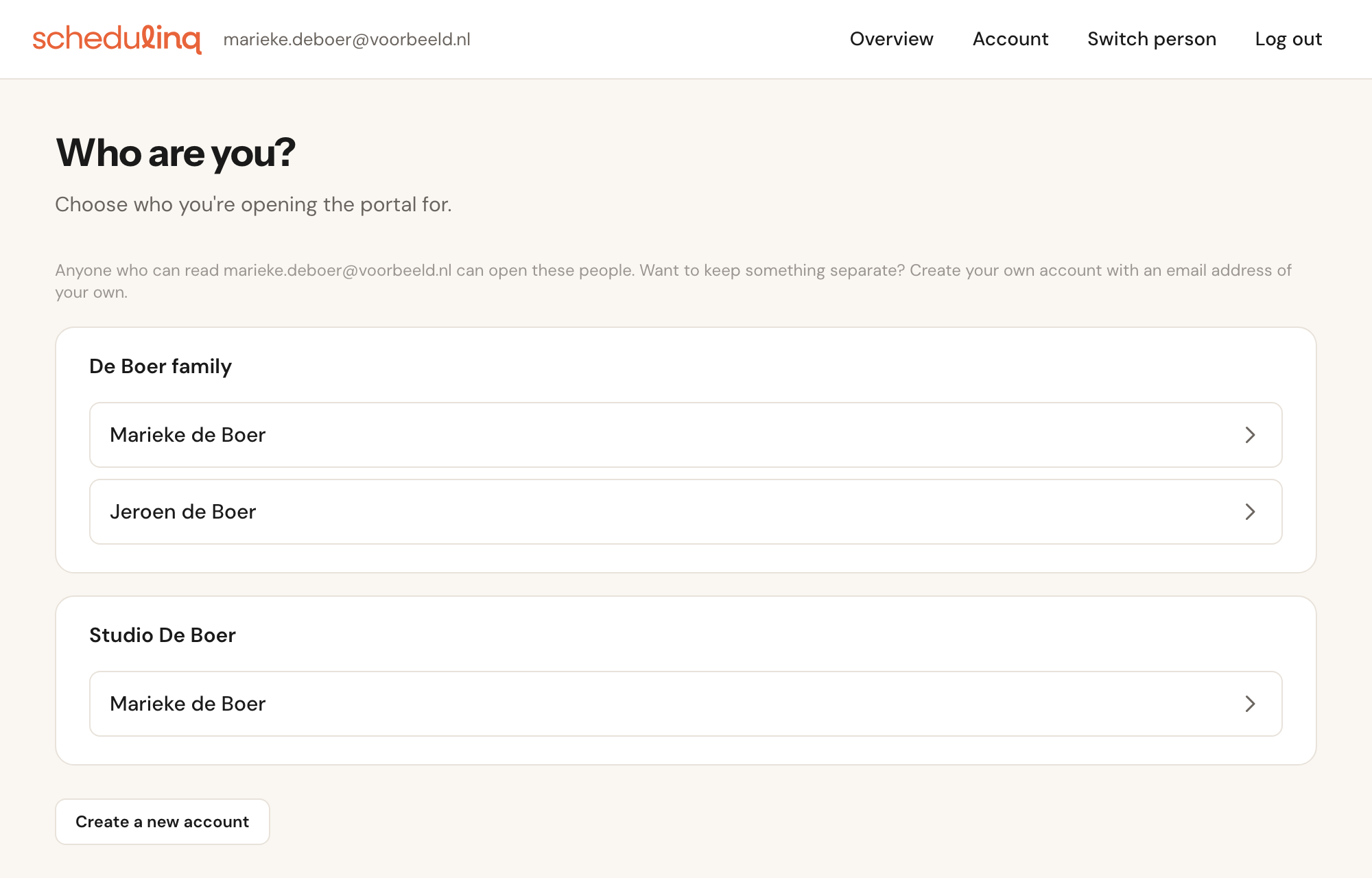
That choice is not protected: everyone in an account shares the same email address. That is why it also says Want to keep something separate? Create your own account with an email address of your own. The header always shows who is chosen; with Switch person the customer picks someone else. That holds for every tab in the same browser.
The overview
The first screen after logging in. From top to bottom:
- Waiting for you — invitations waiting for this email address. See Invite a customer.
- Forms to fill in — at every business. See The customer fills in.
- Upcoming appointments — at all connected businesses together, the next one on top, each with its business. The pencil opens the page to change or cancel.
- Businesses — a card per connected business, with your logo and since when he is connected.
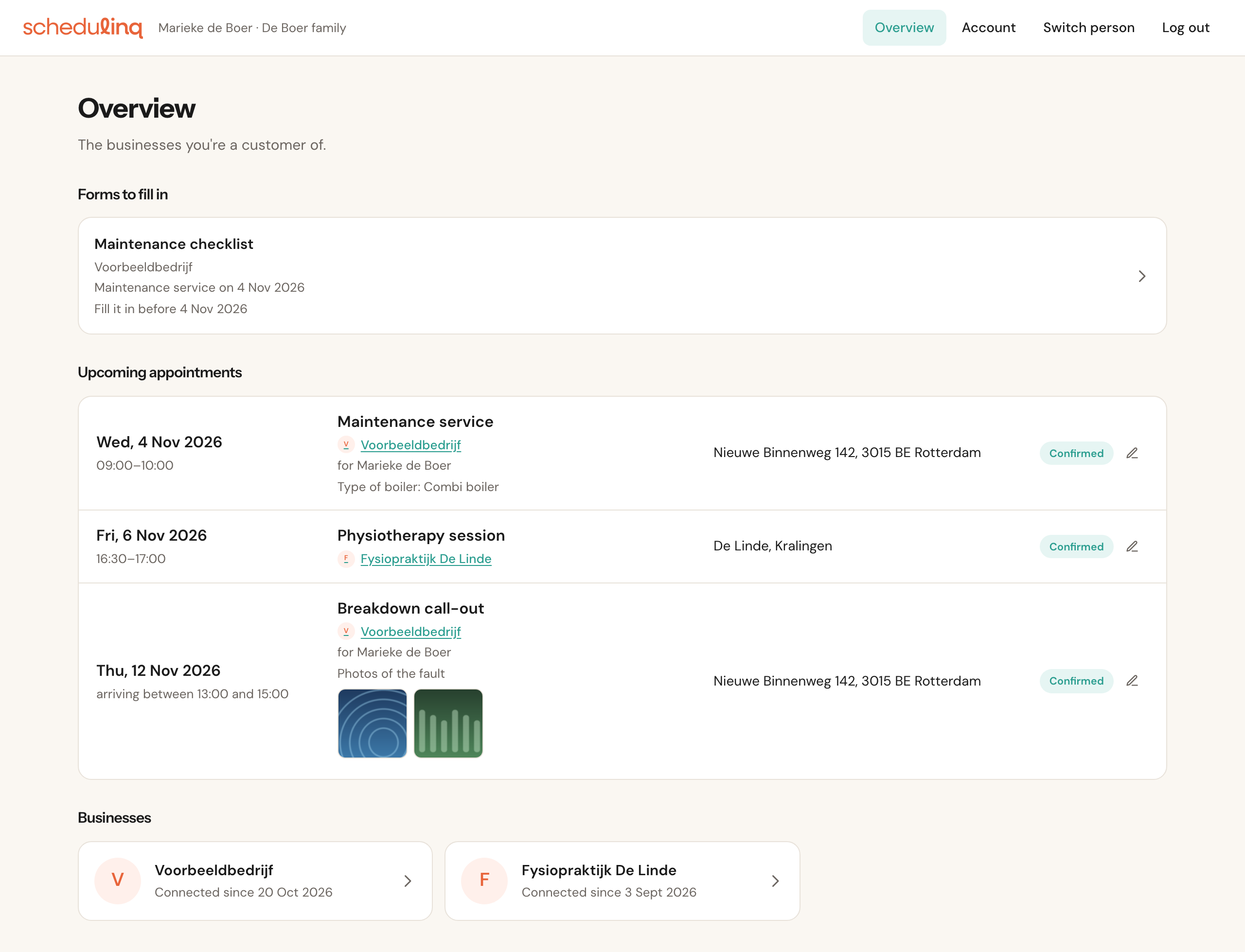
If the customer is connected to one business only and nothing is waiting, the portal opens that business straight away. If the person has no name yet, the overview asks for it first: What's your name? Add it so businesses recognise you straight away.
Your business page
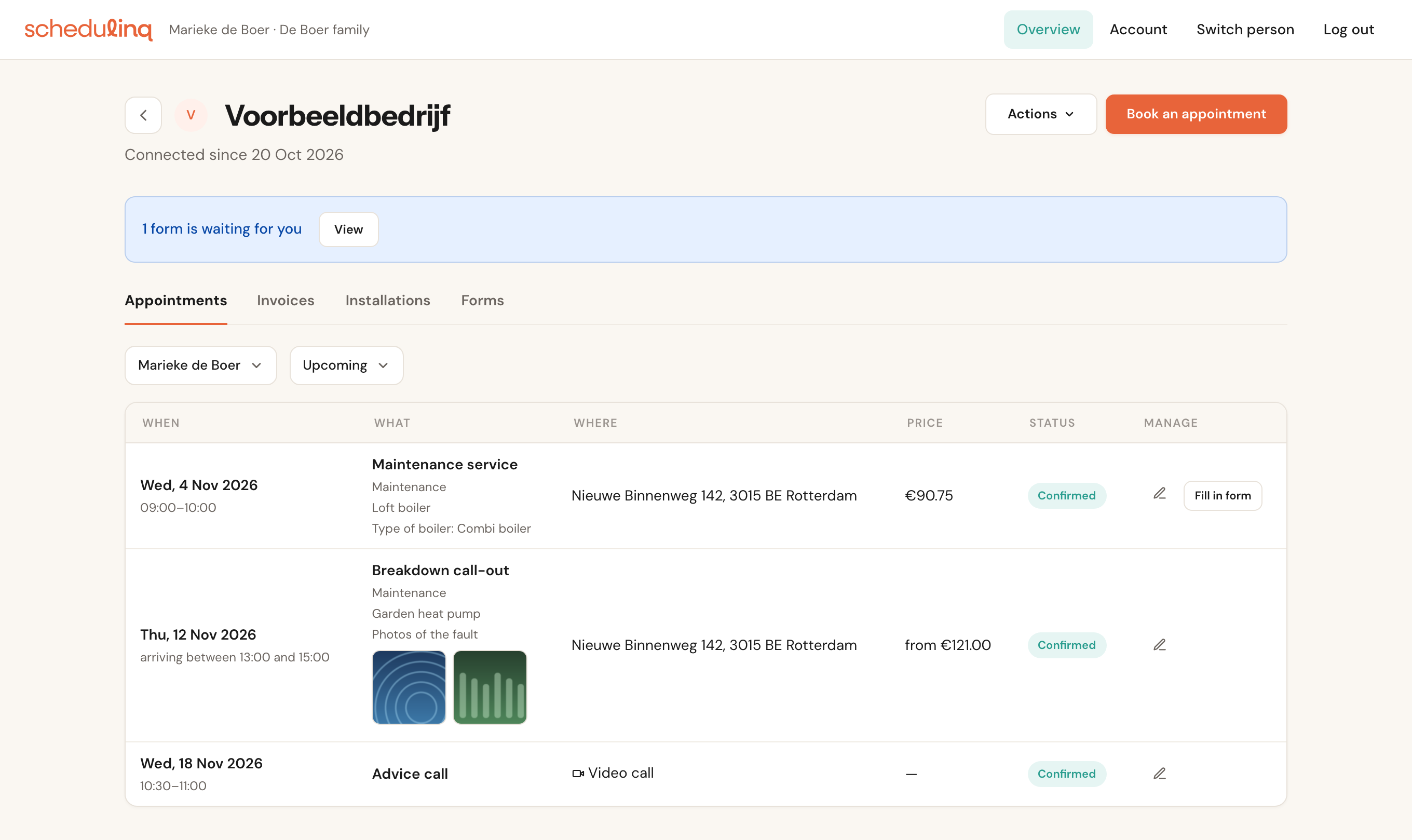
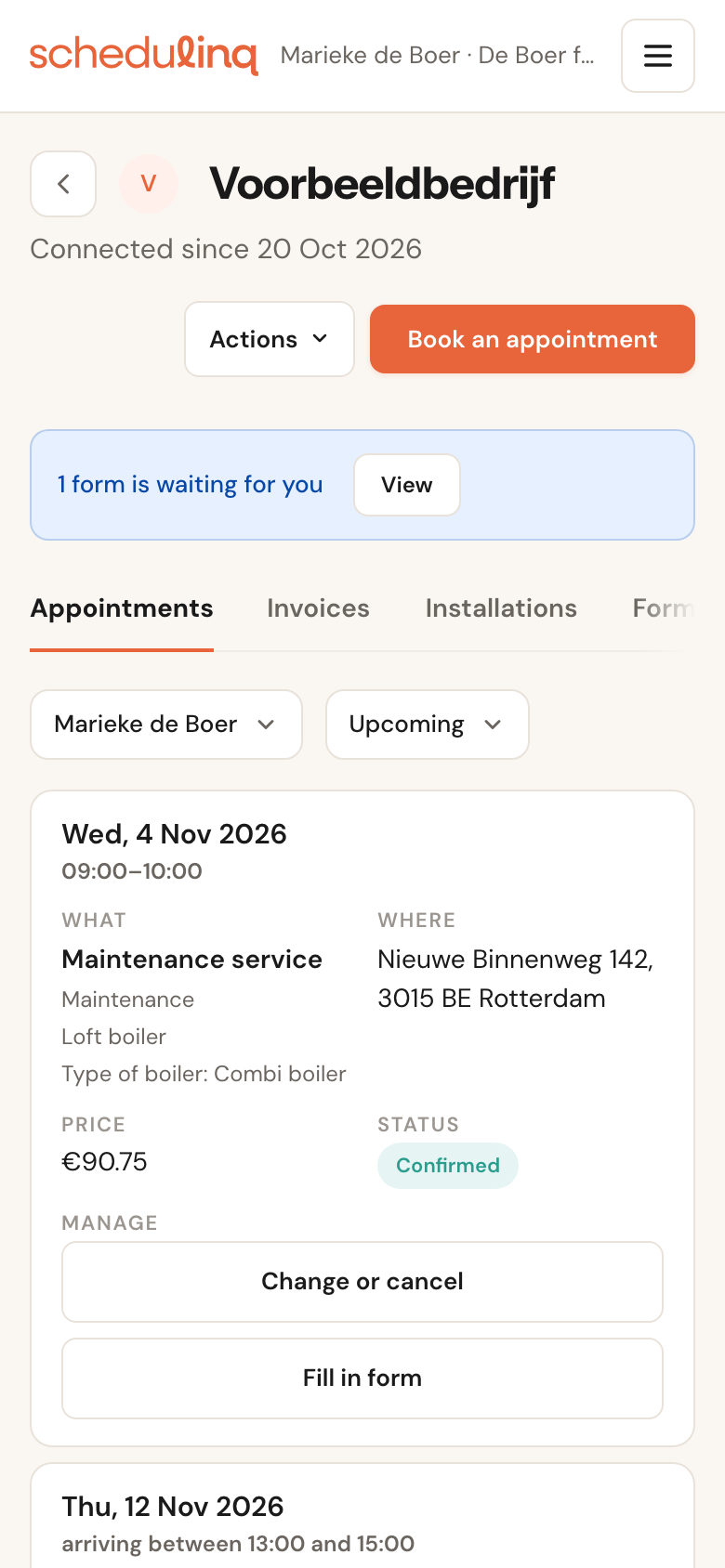
When the customer clicks your card, he sees your page: your name and logo, since when he is connected, Book an appointment at the top right and the tabs below.
For whom
If the account has customer records of more than one person with you, there is a filter with their names and Everyone. It starts on the person who is logged in.
Appointments: Upcoming and Past
The Appointments tab has a choice of Upcoming or Past. Per appointment:
When
The date and time, in your business's time zone. If you work with an arrival window, it reads arriving between 13:00 and 15:00.
What
The service and category, the object the appointment is for, and the answers the customer may see: what he filled in himself on the booking page, and the custom fields you switched on for the portal. A photo the customer uploaded when booking shows as a small picture that opens large; any other file he can download.
Which custom fields the customer sees, you decide per field with Show in the customer portal. See Custom fields.
Where
The address at the customer's or your location, or Video call or Phone call.
Price
What the appointment costs, incl. VAT, as the invoice adds it up — service, add-ons, surcharges and discount. For a starting price it says from. If nothing is priced, a dash.
Status
Confirmed, Pending, Completed, Missed or Cancelled.
Manage
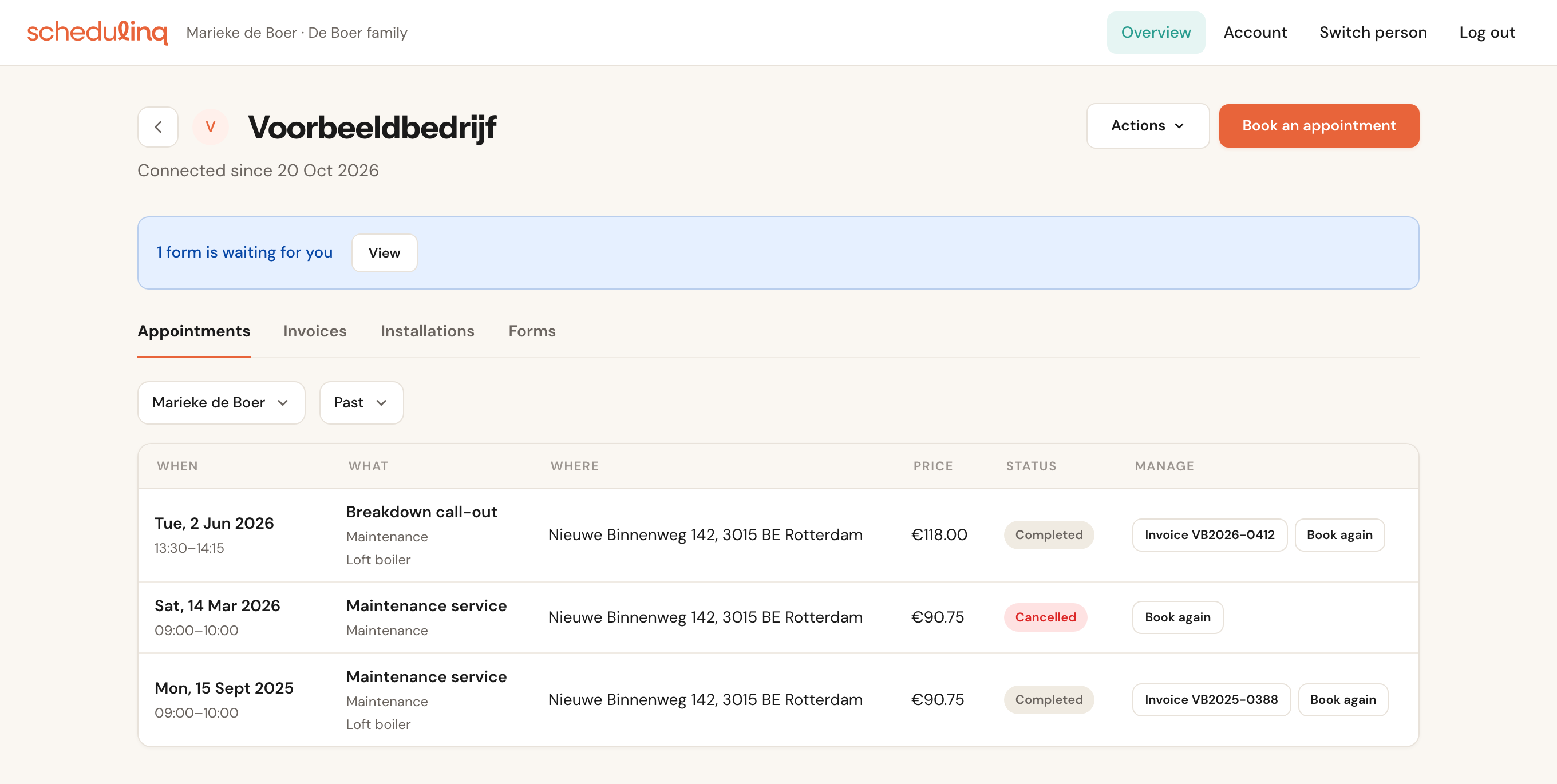
On an upcoming appointment the customer may still change: the pencil Change or cancel. It opens, in a new tab, the same page as the link in your confirmation email, with your rules for changing and cancelling. On an invoiced appointment there is Invoice … to download it, and on an appointment you ask a form for, Fill in form.
Under Past the customer also sees cancelled appointments, and the Book again button on a service he can still book in the portal. See Booking from the portal.
Invoices
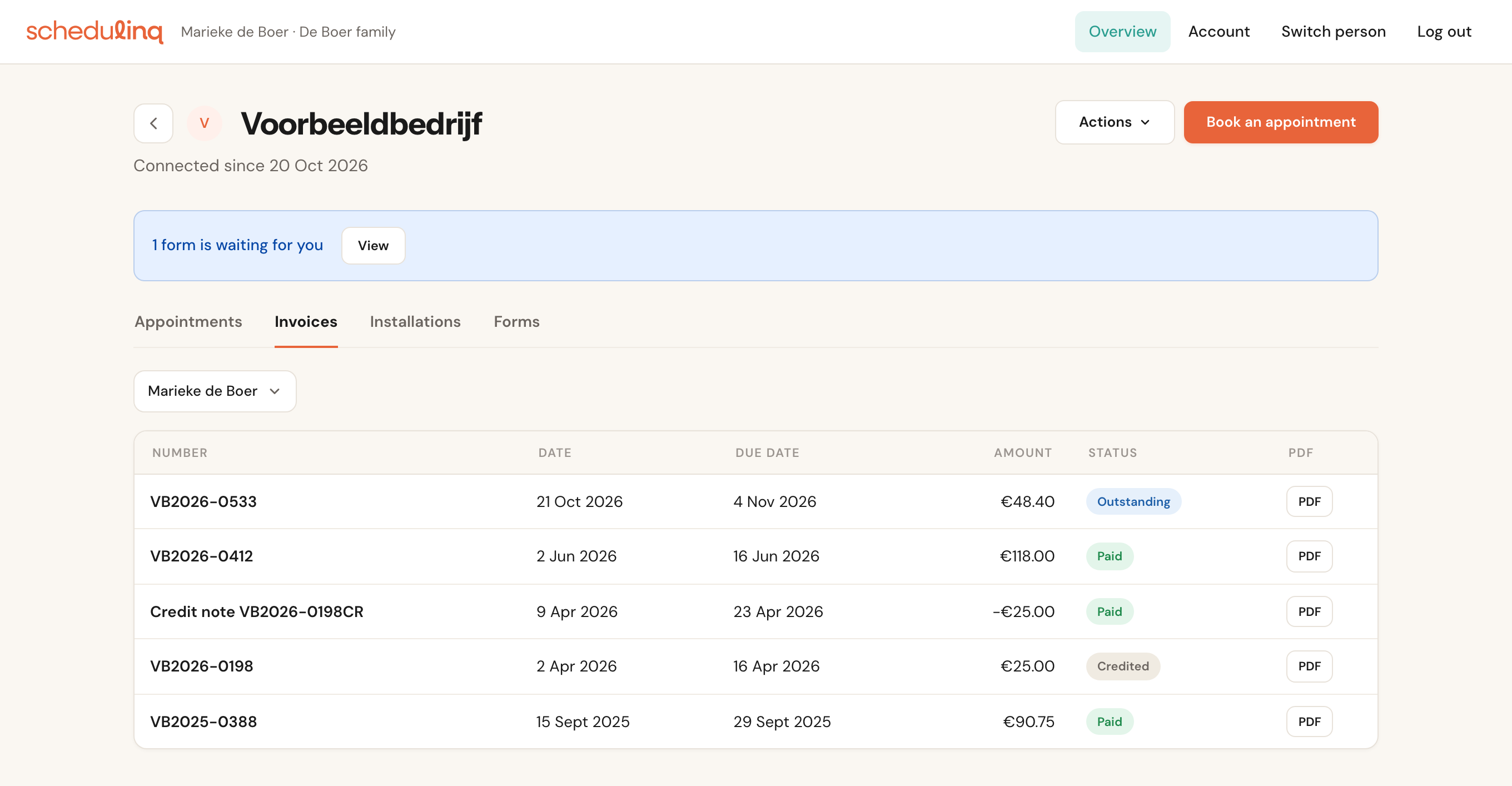
Every invoice of the connected customer records that is no longer a draft: Outstanding, Paid, Overdue and Credited, with credit notes and gift voucher invoices. PDF downloads the invoice under its own number. If the invoice comes from your bookkeeping software, it opens in a new tab.
Objects
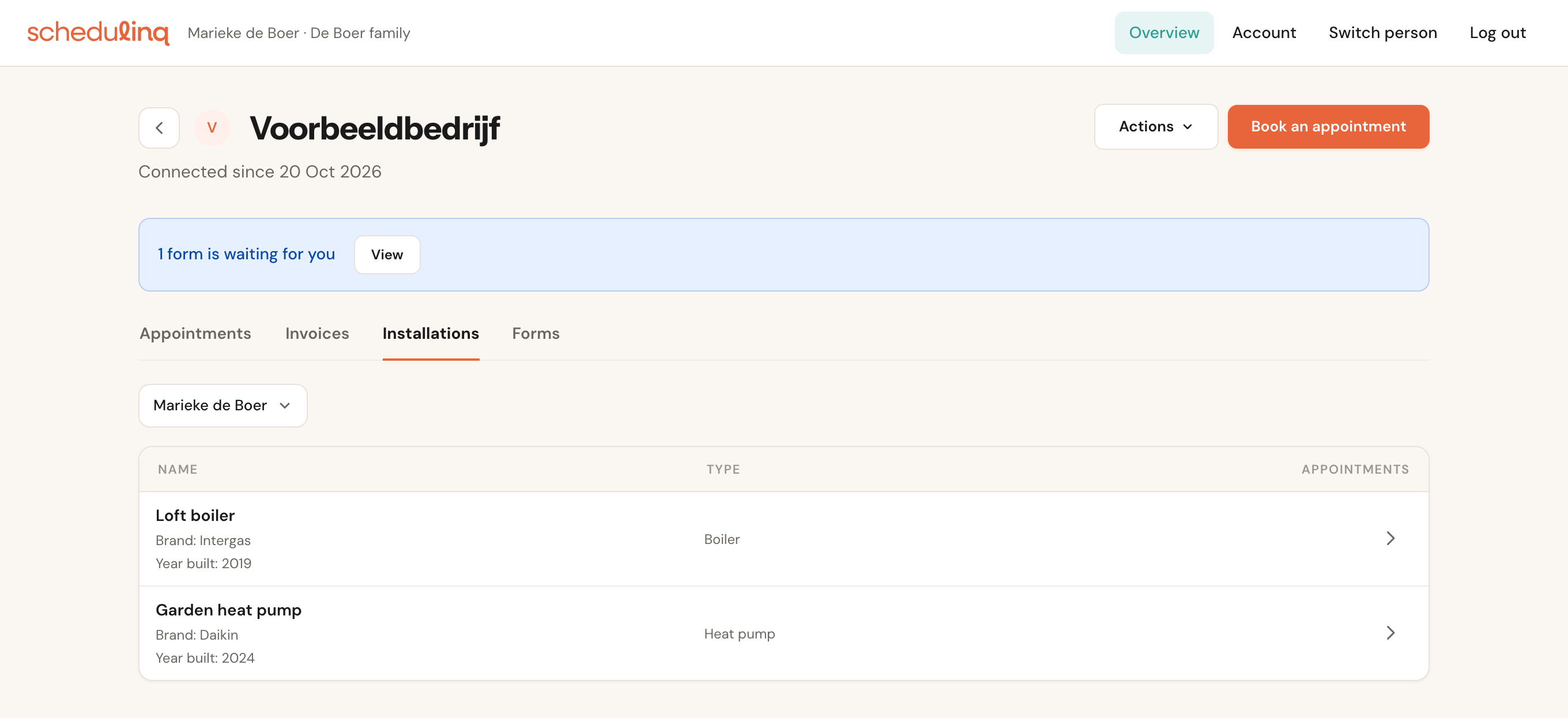
If you keep track of objects — boilers, heat pumps, horses — the page has a tab under your name for them, such as Installations. The customer sees each object with its type and the fields you switched on for the portal. A click on the arrow shows the appointments for that object.
Forms
If you ask the customer to fill in a form, the page has a Forms tab, with To do, Sent and Completed, and a message at the top while something is waiting for him. See The customer fills in.
On a phone
The portal is built for a phone. Each appointment becomes a card, and Change or cancel a full button instead of a pencil.
What is and is not visible
| The customer sees | The customer does not see |
|---|---|
| All appointments of the connected customer records — every status, including ones you scheduled yourself or that come from your calendar or Teamleader | The title a colleague gave an appointment in his own calendar, for an appointment that comes from that calendar: it just reads Appointment |
| The answers he gave himself, and the custom fields you switched on for the portal | Notes on the customer record, internal notes, custom fields meant only for your team |
| Every invoice that is not a draft, with credit notes and gift voucher invoices | Draft invoices |
| The objects of the connected customer records | Customer records you did not invite, not even ones with the same email address |
If you delete a customer record, everything of it disappears from the portal. If support restores it, it comes back.
The account
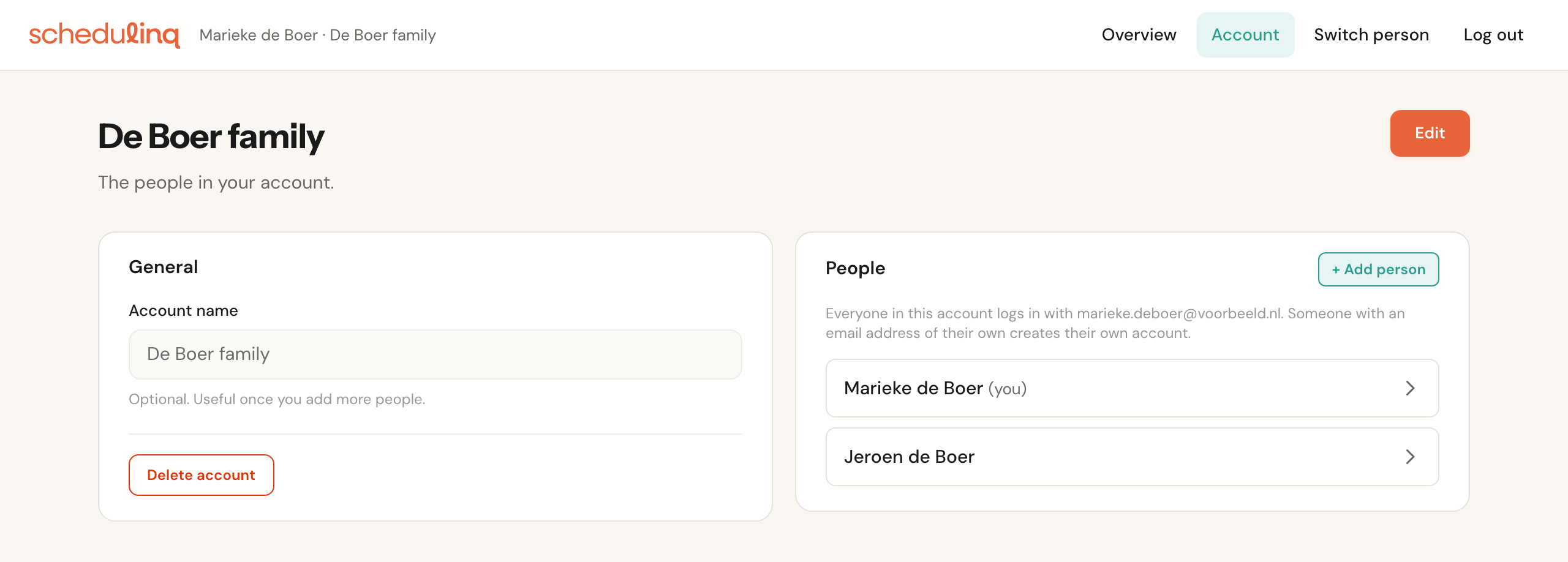
Under Account is the customer's account: the name (for example De Boer family) and the people in it. With Edit he changes the name, with + Add person he adds someone. Everyone logs in with the same address; it says so too.
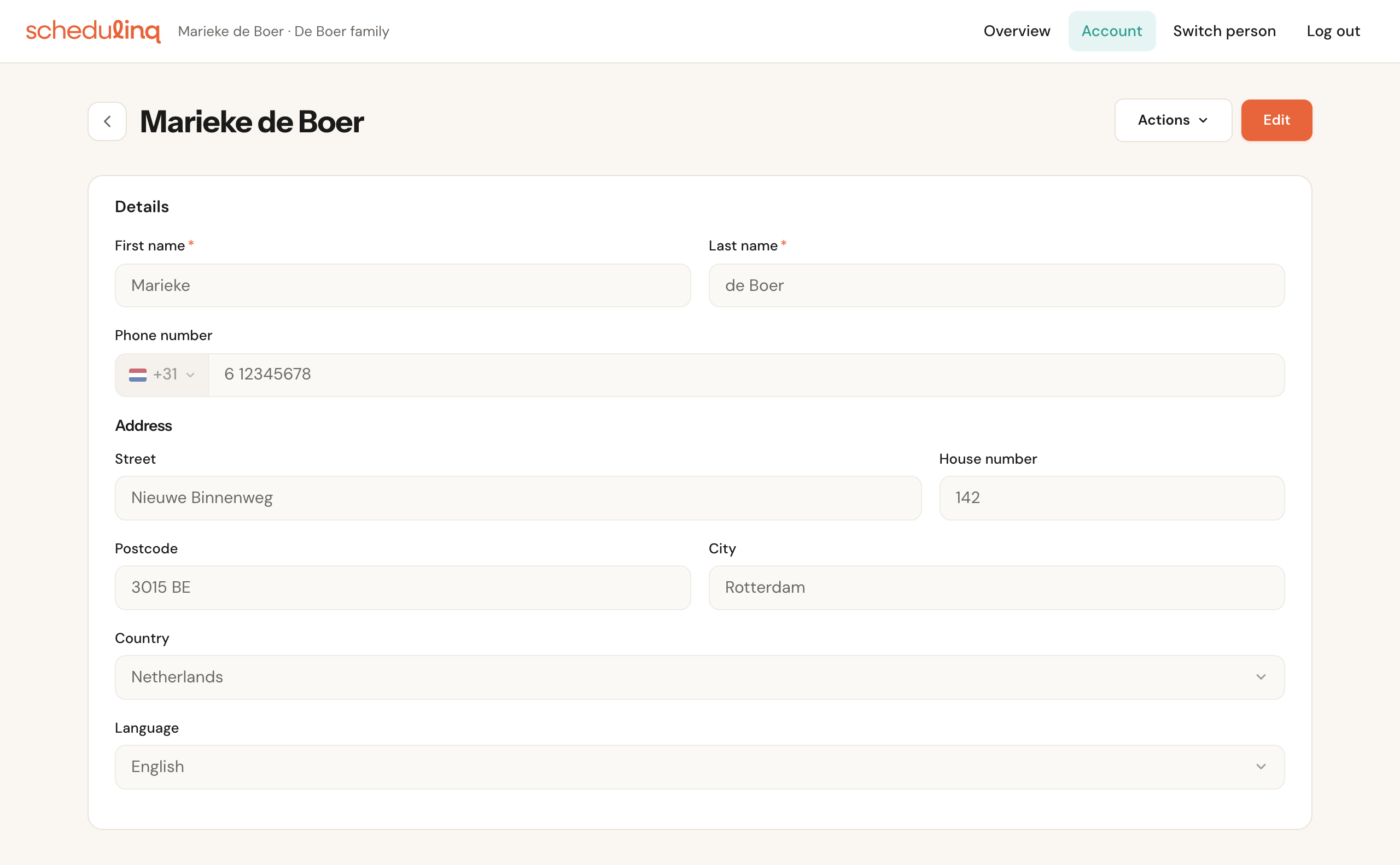
A person opens with their details: first name, last name, phone number, address, country and language. What the customer changes here stays in his portal — your customer record does not change. It is used, though, when he books and you do not know him yet.
How a customer withdraws a connection to you or deletes his account is in Manage and withdraw access.